Which Streaming Stick Is Best for an Older Non-Smart TV?
Which Streaming Stick Is Best for an Older Non-Smart TV?

That old flat-screen in the guest room still has a great picture — it just can’t run Netflix anymore, because the built-in apps died years ago (or it never had them). You don’t need a new TV. You need a $30–$50 streaming stick, and the question of which streaming stick is best for an older non-smart TV has a pretty clear answer in 2026.
I’ve set these up on decade-old TVs for family members more times than I can count. The trick with older TVs is that not every stick plays nice with ancient HDMI ports and low-powered USB ports. Here’s what actually works and what to skip.
Which streaming stick is best for an older non-smart tv?
What Your Old TV Needs From a Streaming Stick
First, check that your TV has an HDMI port — anything made after about 2008 almost certainly does. If it only has the old red/white/yellow composite inputs, you’ll need an HDMI-to-composite converter too (about $15), and honestly at that point the TV might be more trouble than it’s worth. But for any TV with HDMI, a modern stick will work.
The gotcha with older TVs: their USB ports often don’t supply enough power to run a streaming stick, so plan on using the included wall adapter plugged into an outlet, not the TV’s USB port. Also, older TVs sometimes have HDMI ports that don’t play well with HDCP copy protection — if you get a blank screen with sound, that’s usually the issue, and a different HDMI port or a newer stick often fixes it.
The Best Streaming Sticks for Older TVs in 2026
For most people with an older non-smart TV, the Roku Express 4K+ (around $40) is the sweet spot. It’s dead simple — big remote buttons, no confusing interface — and it handles older HDMI ports gracefully. My parents, who are not tech people, figured it out in ten minutes. The 4K support is overkill for an old 1080p TV, but it means the stick won’t feel outdated next year.
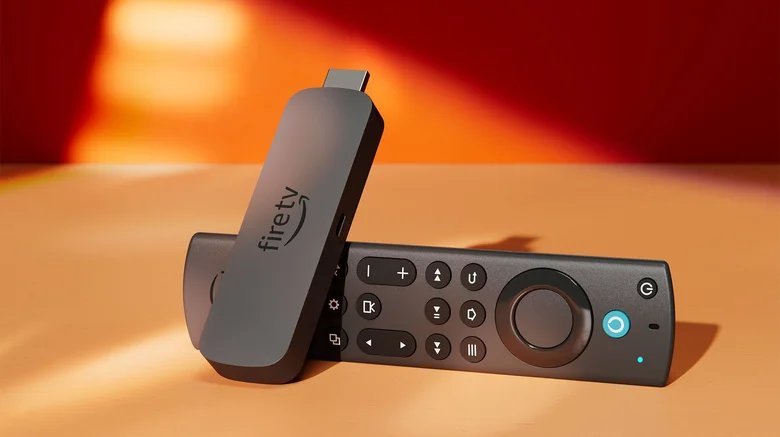
The Amazon Fire TV Stick 4K (often $35–$50 on sale) is the better pick if you’re deep in the Amazon ecosystem or want Alexa voice control. It’s slightly fussier to set up and pushes Amazon content hard, but performance is excellent. The Chromecast with Google TV (around $50) has the nicest interface of the three and great voice search, though it’s the most likely to have HDMI handshake quirks with very old TVs. The Apple TV 4K ($129+) is overkill for this job — fantastic device, wrong mission.
Setup Tips for a Smooth Experience
Plug the stick into the wall outlet, not the TV’s USB port — this single step prevents half of all ‘my stick keeps restarting’ complaints. Use the HDMI extender cable that comes in the box if the stick doesn’t fit behind your wall-mounted TV. Connect to your Wi-Fi during setup, and if your router is far from the TV, consider that older TVs’ rooms often have weak signal — our guide on why Wi-Fi drops in one room of the house can help.
If the remote won’t control your TV’s volume, go into the stick’s settings and run the remote setup — it learns your TV’s infrared codes in about a minute. And do yourself a favor: during setup, decline the half-dozen free trial subscriptions it offers. You can always add services later without the billing surprises we cover in how to cancel free trials before they charge you.
Quick Answers
- Best overall: Roku Express 4K+ (~$40) — simplest interface, most forgiving with old HDMI ports.
- Best for Amazon users: Fire TV Stick 4K (~$35–$50) — great Alexa integration, frequent sales.
- Best interface: Chromecast with Google TV (~$50) — excellent recommendations and voice search.
- Skip for old TVs: Apple TV 4K — wonderful but overpriced for breathing life into an old set.
- Must-have accessory: nothing, usually — but keep the wall adapter plugged into an outlet, not the TV.
- Wi-Fi struggling? A $25 Wi-Fi extender near the TV’s room can fix buffering on older sets.
The Bottom Line
So which streaming stick is best for an older non-smart TV? For most people: the Roku Express 4K+. It’s cheap, simple, reliable on old HDMI ports, and powerful enough to last years. Grab it on sale, plug it into wall power, and that ‘dumb’ TV becomes smarter than most 2026 smart TVs’ built-in software.
You’ll spend under $50 and about 15 minutes. Compare that to $300+ for a new TV, and it’s one of the easiest tech upgrades there is. If Netflix still buffers after the upgrade, the problem is probably your network, not the stick — see why your smart TV buffers on Netflix but not YouTube for the fix.
Frequently Asked Questions
Do I need 4K on a streaming stick for an old 1080p TV?
No — but buy it anyway. The 4K models (Roku Express 4K+, Fire TV Stick 4K) cost barely more than the HD-only versions and have faster processors, which means snappier menus and longer software support. The stick will happily output 1080p to your old TV. Think of 4K support as future-proofing for your next TV, not a feature for this one. The price difference is usually under $10.
Will a streaming stick work on a really old TV without HDMI?
Only with an adapter. If your TV predates HDMI (composite red/white/yellow inputs only), you need an HDMI-to-composite converter (~$15) plus the stick — and the picture will be standard definition regardless. Honestly, for TVs that old, weigh the $50–$65 total against a used 1080p TV from Facebook Marketplace ($50–$100). Sometimes the TV itself is the upgrade that makes sense.
Which stick is easiest for elderly parents?
The Roku Express 4K+, by a mile. The remote has big buttons, the interface is a simple grid, and there’s minimal upselling confusion. Set it up for them, log into their services, and show them the home button — that’s the whole training. The Roku platform overview shows just how simple the interface stays. Avoid the Fire Stick for tech-anxious parents; its interface pushes Amazon content aggressively and confuses newcomers.