How Do I Back Up My Phone Photos Without Paying for Cloud Storage?
How Do I Back Up My Phone Photos Without Paying for Cloud Storage?

Your phone just warned you that iCloud storage is full, and Apple would love to sell you more. Google did the same thing a while back — free unlimited Photos backups are long gone. So how do I back up my phone photos without paying for cloud storage? Turns out you have several genuinely good free options, and some of them are better than the paid clouds anyway.
I back up about 40 GB of family photos without paying a dime, and I’ve helped plenty of friends do the same. The key is picking the method that matches how you actually use your phone — not the one with the slickest ads. Let’s walk through the real options.
How do I back up my phone photos without paying for cloud storage?
The External Drive Method: Simple and Truly Yours
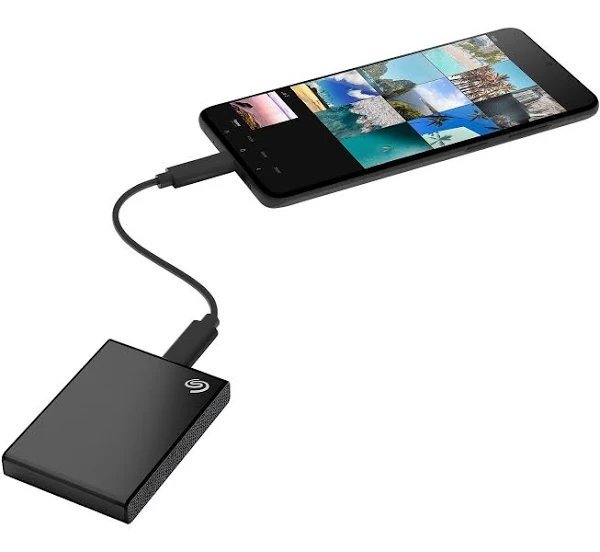
The most straightforward free backup is a physical one: plug your phone into a computer and copy the photos off. On iPhone, plug into a Mac or PC and import with the Photos app or File Explorer. On Android, plug in with USB, set the connection to file transfer, and drag the DCIM folder over. A 1 TB external hard drive costs around $50 once — that’s it, no monthly fee, and your photos live on hardware you own.
The downside is obvious: you have to remember to do it. Set a monthly reminder — ‘photo backup Sunday’ — and it takes ten minutes. Keep the drive somewhere safe, ideally not next to the computer (a fire or theft that takes both defeats the purpose). For extra safety, a second cheap drive stored at a family member’s house is the poor man’s offsite backup, and it works.
Free Cloud Tiers You Might Be Underusing
Here’s what the subscription nags don’t tell you: the free tiers are often enough if you’re strategic. iCloud gives you 5 GB free, Google gives 15 GB across Gmail/Drive/Photos. That won’t hold a decade of photos, but it can protect your most recent, most precious ones. Turn on iCloud or Google Photos backup, then regularly move older photos to your external drive and delete them from the cloud to stay under the free limit.
Amazon Photos is the sleeper pick: if you have Amazon Prime (many households already do for shipping), you get unlimited full-resolution photo storage included. Not a Prime member? The free tier still gives 5 GB. And Microsoft OneDrive’s free 5 GB works fine as a secondary copy. The trick is using these as a safety net for recent photos while the external drive holds the full archive.
The ‘Old Laptop as Photo Server’ Trick
Got an old laptop gathering dust? Don’t throw it away — turn it into a photo backup station. Install Google Drive, Dropbox, or Resilio Sync on it, plug in an external drive, and set your phone to auto-upload photos to it over your home Wi-Fi. Free apps like Syncthing (Android) or PhotoSync can push new photos to your home computer automatically whenever you’re on Wi-Fi.
This is my favorite setup honestly. It costs nothing, it’s automatic once configured, and your photos never touch a company’s servers. The laptop just needs to stay on and connected. If that old tablet is sitting in a drawer too, check out ways to make an old tablet useful again — a tablet makes a surprisingly good photo frame for your backed-up pictures.
Quick Answers
- Monthly manual backup: Plug phone into computer, copy photos to an external drive. Free after a ~$50 drive.
- Amazon Photos: Unlimited full-res storage included with Prime; 5 GB free without it.
- Rotate free cloud tiers: Keep recent photos in iCloud/Google free storage, archive older ones locally.
- Auto-sync at home: Syncthing or PhotoSync pushing to an old always-on laptop — set and forget.
- Direct to USB: iPhones (USB-C models) and most Androids can copy straight to a flash drive with a $10 adapter.
- The 3-2-1 rule: 3 copies, 2 different media types, 1 offsite. Even free setups should aim for this.
- Running out of space first? See why your phone storage is full even after deleting photos.
The Bottom Line
Backing up your phone photos without paying for cloud storage is absolutely doable — a $50 external drive plus a monthly ten-minute habit covers most people, and Amazon Photos or a home auto-sync setup covers the rest. The best backup is the one that actually happens, so pick the method you’ll stick with.
Don’t let the ‘storage full’ nag push you into a subscription you don’t need. Spend 20 minutes setting up one of these free methods today, because the only backup anyone regrets is the one they kept meaning to do — right before the phone took a swim. Speaking of which, if disaster already struck, here’s what to do if your phone falls in water.
Frequently Asked Questions
How often should I back up my phone photos?
Monthly at minimum; weekly if you take a lot of photos. The real answer is to automate it so frequency stops being a decision — auto-upload to an external drive via your home computer, or to Amazon Photos if you have Prime. Manual monthly backups fail the moment life gets busy, which is exactly when you’ll take the photos that matter most. Set it up once, verify it works, then forget about it.
Are free cloud photo services safe for private photos?
Reasonably, with caveats. Google Photos, iCloud, and Amazon Photos all encrypt data in transit and at rest, and breaches of these specific services are rare. But you’re trusting a corporation with your memories, and their terms allow automated scanning. For sensitive photos, local backups (external drive you control) are the privacy-maximalist choice. Most people sensibly use both: cloud for convenience, local drive as the private archive. The basics of how cloud storage works help you understand what’s actually happening to your files.
What’s the cheapest external drive for photo backup?
A 1 TB portable hard drive from WD or Seagate runs $50–$60 and holds roughly 250,000 phone photos. That’s years of backups for most people. SSDs are faster and more durable ($70–$90 for 1 TB) but unnecessary for archival photo storage. Buy from a reputable retailer — counterfeit drives with fake capacities are a real thing on sketchy marketplaces. One drive is good; two drives (one offsite) is proper backup.
Pingback: Transfer Files to a New Computer: Easiest Methods
Pingback: Recover Deleted Photos Without Backup (iPhone & Android)