What Is the Easiest Way to Scan Documents With My Phone?
What Is the Easiest Way to Scan Documents With My Phone?

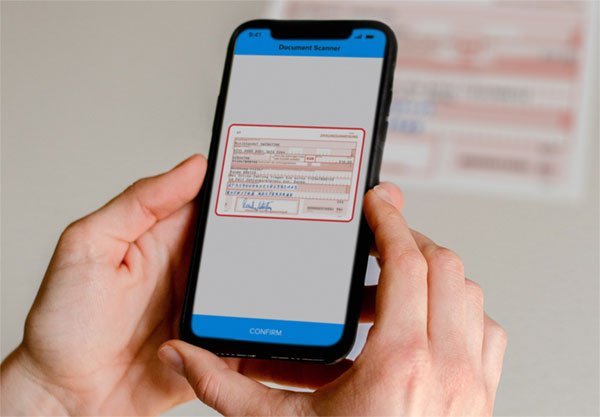
You need to send a signed form, a receipt for expenses, or your ID for some paperwork — and you don’t own a scanner. Nobody does anymore. What is the easiest way to scan documents with my phone? The answer is: the scanner is already in your pocket, built into apps you probably have.
No downloads, no subscriptions, no sketchy free scanner apps stuffed with ads. Here’s how to make clean, professional-looking scans with what you already own.
What is the easiest way to scan documents with my phone?
iPhone: The Notes App Scanner (Already Installed)
Open the Notes app, create a new note, tap the camera icon, and choose ‘Scan Documents.’ Point your phone at the document — the iPhone auto-detects the edges, captures it, and lets you adjust the corners if needed. Scan multiple pages into one document, then tap Save. You can then share it as a PDF via email, AirDrop, or messages, or save it to Files.
The quality is genuinely excellent — automatic perspective correction, shadow removal, and contrast adjustment. For 95% of scanning needs (forms, receipts, contracts, IDs), this is all you’ll ever need. Pro tips: scan on a dark background for better edge detection, keep the phone parallel to the document, and use good lighting — near a window beats overhead fluorescents every time.
Android: Google Drive’s Scanner
On Android, open the Google Drive app, tap the + button, and choose ‘Scan.’ Same deal: auto edge detection, multi-page capture, perspective correction, saved as PDF straight to your Drive. It’s been quietly excellent for years and most Android users have never opened it. Samsung users also have a scan option in the Camera app’s ‘Scan’ mode.
The Drive scanner’s killer feature is that scans land directly in cloud storage — shareable via link in seconds, which is perfect for expense reports and paperwork. Like the iPhone, lighting and a contrasting background make the difference between a decent scan and a great one. For receipts specifically, both platforms handle the small-paper challenge well if you flatten the receipt first (a book works) and get close.
When You Need More Than the Basics
For occasional higher-volume scanning — digitizing a filing cabinet, say — dedicated apps earn their keep. Adobe Scan (free) has the best text recognition (OCR) of the free options, turning scans into searchable PDFs. Microsoft Lens (free) is excellent for whiteboards and integrates with OneNote. Both are free without the ad-hell of random scanner apps — never pay for a scanner app with a weekly subscription; that’s a scam category unto itself.
For truly professional results (old photos, fragile documents), a $70–$100 portable scanner or a library’s free scanner still beats any phone. But for everyday documents, your phone matches a flatbed scanner from five years ago. And once you’ve gone paperless, keep the momentum: a simple wireless printer setup handles the rare times you need paper back.
Quick Answers
- iPhone: Notes app > camera icon > Scan Documents. Auto edge detection, saves as PDF.
- Android: Google Drive > + > Scan. Saves straight to Drive as PDF.
- Best practices: dark contrasting background, good natural light, phone parallel to page.
- Multi-page: both built-in scanners capture multiple pages into one PDF.
- Need OCR/searchable text? Adobe Scan (free) has the best text recognition.
- Never pay for a scanner app with a weekly subscription — free options are better.
- Receipts: flatten first, get close, and both built-ins handle them well.
The Bottom Line
The easiest way to scan documents with your phone is the scanner you already have: Notes on iPhone, Google Drive on Android. Both are free, both produce excellent PDFs, and both take about 30 seconds per document once you’ve done it once.
Delete those ad-stuffed scanner apps and stop putting off the paperwork. The best scanner is the one in your pocket — and now you know where to find it.
Frequently Asked Questions
Are phone scans legally valid like real scanner copies?
For most purposes, yes — a clear phone scan is accepted for expense reports, applications, contracts, and records everywhere a flatbed scan would be. What’s required is legibility and completeness, not the device used. Exceptions: some government/legal filings specify resolution or format requirements (check the instructions), and archival digitization has higher standards. For everyday paperwork, phone scans are fully legitimate — the scanner snobbery ended years ago.
How do I scan a multi-page document into one PDF?
Both built-in scanners handle this: iPhone Notes scanner and Google Drive scanner let you keep adding pages before tapping Save — each new capture appends to the same document. Then share or save as a single PDF. For existing separate scans, free tools (Adobe Acrobat online, phone Files apps) merge PDFs. The whole multi-page workflow takes under two minutes once you’ve done it once.
What’s the best way to scan old photos with a phone?
Different technique: use Google PhotoScan (free), which takes multiple shots to eliminate glare — the killer problem with photographing glossy prints. Lay the photo flat, avoid overhead glare (angle near a window), and let the app guide the capture. Results rival flatbed scanners for prints. For negatives or slides, dedicated scanning is still better — phone apps can’t match a real film scanner. But for the shoebox of family prints, PhotoScan is transformative.
Can I extract text from my scans (OCR)?
Yes — Adobe Scan (free) has the best mobile OCR, producing searchable PDFs where you can copy text. Google Drive’s scanner also OCRs automatically for search within Drive. iPhone’s Live Text can copy text from any scan in Photos. Accuracy is excellent on clean printed text, weaker on handwriting. For digitizing documents you need to search later, always choose the OCR option — a searchable archive beats a pile of image-only PDFs. The technology behind image scanners explains how the edge detection and perspective correction in your phone actually works.
How should I organize scanned documents so I can find them later?
Name files descriptively at scan time — ‘2026-03-15_Dentist-Receipt.pdf’ beats ‘Scan_0042.pdf’ every time. Create a simple folder structure (Taxes, Medical, Home, Receipts) in Google Drive or iCloud, and file scans immediately rather than letting them pile up in a downloads folder. For receipts you’ll need at tax time, a dedicated ‘Tax Year 2026’ folder saves hours in April. And since scans accumulate like photos, apply the same discipline as photo backup habits — regular offloads to an external drive mean your phone never fills up with documents either. Future you, searching for that warranty receipt, will be grateful for 30 seconds of organizing today.