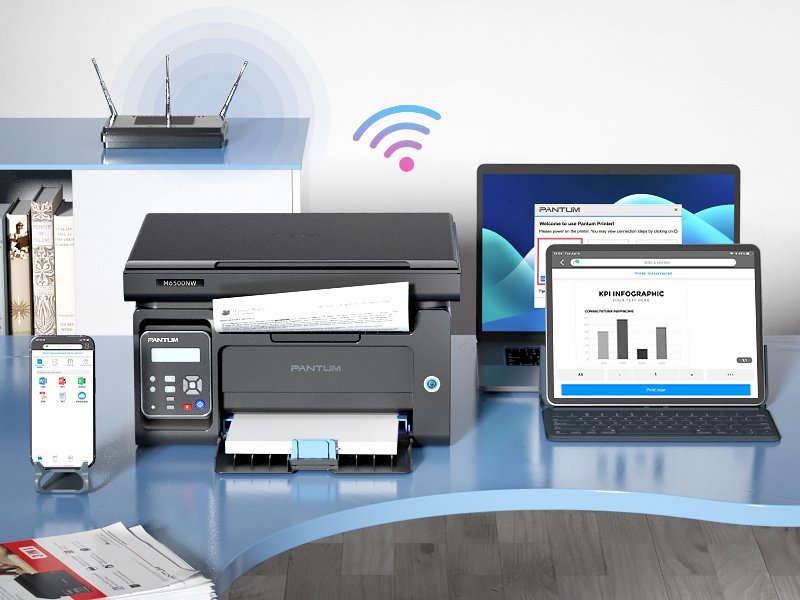
How Do I Connect My Wireless Printer to a New Wi-Fi Network?
How Do I Connect My Wireless Printer to a New Wi-Fi Network?

You got a new router, moved apartments, or changed your Wi-Fi password — and now your wireless printer is a very expensive paperweight that refuses to talk to anything. How do I connect my wireless printer to a new wifi network without spending an hour on hold with support?
The good news: reconnecting a printer is a 5–10 minute job once you know your printer’s method. The bad news: every brand does it slightly differently, which is why it feels confusing. Here’s the universal playbook plus brand-specific shortcuts.
How do I connect my wireless printer to a new wifi network?
The Easiest Method: WPS (If Your Router Has It)
Look at your router for a button labeled WPS. If it has one, you’re in luck — this is the two-minute method. Put your printer in WPS mode (usually: hold the Wi-Fi button on the printer until it blinks, or find ‘WPS’ in the network settings menu), then press the WPS button on your router within two minutes. The two devices handshake automatically and the printer joins the network. No passwords to type on a tiny printer screen.
Not all routers have WPS anymore — some ISPs disable it for security reasons — so if there’s no button, move on to the next method. And a security note: WPS has known vulnerabilities, so if your router lets you disable it after setup, do that. But for getting the printer online quickly, it’s the path of least resistance.
The Standard Method: Printer Screen or App Setup
Most modern printers (HP, Canon, Epson, Brother made in the last 5–6 years) have you run wireless setup from the printer’s touchscreen or via the manufacturer’s phone app. The app route is honestly easier: download HP Smart, Canon PRINT, Epson iPrint, or Brother Mobile Connect, and follow the ‘set up new printer’ flow. The app finds the printer over Bluetooth or a temporary direct connection, then hands it your Wi-Fi credentials.
If you’re doing it on the printer’s screen: go to Settings > Network/Wireless > Wireless Setup Wizard, select your network name, and type the password carefully. Printer touchscreens are fiddly — double-check every character, because a wrong password just fails silently and you’ll think the printer is broken. Pro tip: if your router broadcasts separate 2.4 GHz and 5 GHz networks, connect the printer to the 2.4 GHz one. Printers are notoriously flaky on 5 GHz.
When It Still Won’t Connect: Troubleshooting
First, the classic: restart everything. Printer off for 30 seconds, router rebooted, then try again. Next, check distance — if the printer is in a Wi-Fi dead zone, no setup method will work reliably. Our guide on Wi-Fi dropping in one room applies to printers too; they have weak antennas.
If the printer sees the network but won’t connect, the usual culprits are: wrong password (retype it), MAC address filtering on the router (check router settings), or the printer trying to use an old saved network — do a full ‘Restore Network Settings’ on the printer to wipe the old config and start clean. As a last resort, most printers support Wi-Fi Direct, which lets your phone print directly without the router at all. And if you’re printing from your phone a lot, check the easiest way to scan documents with your phone — sometimes the phone replaces the printer entirely.
Quick Answers
- Fastest: WPS button method — printer WPS mode + router WPS button within 2 minutes.
- Easiest overall: manufacturer’s app (HP Smart, Canon PRINT, Epson iPrint, Brother Mobile Connect).
- Use 2.4 GHz for the printer — 5 GHz connections are flaky on most printers.
- Type passwords carefully on printer touchscreens; silent failures are usually typos.
- Still failing? Restore network settings on the printer, reboot the router, and retry.
- Dead zone? Move the printer closer or fix the room’s Wi-Fi signal first.
- Backup option: Wi-Fi Direct prints straight from your phone with no router needed.
The Bottom Line
Connecting your wireless printer to a new Wi-Fi network takes five minutes with the WPS method or the manufacturer’s app — the printer screen wizard works too if you’re patient with the tiny keyboard. Remember 2.4 GHz, double-check the password, and reboot when in doubt.
If you’ve fought the same printer through three routers and it still drops offline monthly, it might be the printer’s aging Wi-Fi chip rather than your network. At that point, a $30 print server or a newer printer with modern wireless saves more sanity than it’s worth. But try the setup steps first — they work for the vast majority of cases.
Frequently Asked Questions
Why does my printer keep going offline after I connect it?
The classic cause is the printer’s IP address changing — routers reassign local IPs, and your computer keeps looking at the old one. Fix: in your router settings, assign the printer a static/reserved IP address (also called DHCP reservation). Second most common: the printer connected to a guest network or different band than your computer. Both devices must be on the same network name. A static IP solves this permanently for 90% of people.
Should I connect my printer with USB instead of Wi-Fi?
If the printer sits next to your computer and you print infrequently, USB is genuinely more reliable — no network dropouts, no IP changes, faster first-page-out. Wi-Fi earns its keep when multiple people print from phones and laptops, or the printer lives in another room. Many people do both: USB for the main computer, Wi-Fi for everything else. There’s no prize for wireless purity; use what works.
My printer won’t accept my Wi-Fi password — what am I doing wrong?
Nine times out of ten, it’s a typo on the fiddly touchscreen — printers are unforgiving about case, special characters, and trailing spaces. Retype slowly, use the ‘show password’ option if available. The other common gotcha: some printers only see 2.4 GHz networks, so if your router merged the bands under one name, the printer may be choking. Temporarily splitting the bands during setup often fixes it. And check for MAC filtering on the router — rare on home routers, but it blocks new devices silently.
Do I need the manufacturer’s app, or can I skip it?
You can usually skip it — the printer’s built-in setup wizard handles Wi-Fi fine. But the apps (HP Smart, Canon PRINT, Epson iPrint) genuinely make setup easier, especially password entry via your phone’s keyboard instead of the printer’s touchscreen. They also add useful features like ink monitoring and scan-to-phone. Download the app for setup, keep it if you like it, delete it if you don’t. No commitment either way.
Where can I find my printer’s IP address?
On most printers: Settings > Network/Wireless > View Network Details (or print a Network Configuration page from the Reports menu). You’ll also find it in your router’s connected-devices list. Knowing the IP lets you type it into a browser to access the printer’s web interface — useful for advanced settings. Assigning it a static IP in the router (DHCP reservation) prevents the classic ‘printer keeps going offline’ problem permanently. The basics of how printers connect explain why IP changes break printing so often.