How Can I Make My Old Tablet Useful Again Instead of Throwing It Away?
How Can I Make My Old Tablet Useful Again Instead of Throwing It Away?

It’s sitting in a drawer, too slow for daily use but too functional to trash. Every few months you think about recycling it, but something stops you. How can I make my old tablet useful again instead of throwing it away? Good instinct — that ‘obsolete’ tablet has years of useful life as a dedicated single-purpose device.
The trick is to stop thinking of it as a bad general tablet and start thinking of it as a perfect specific tool. A tablet that’s too slow for multitasking is plenty fast for one job. Here are ten genuinely useful second lives.
How can I make my old tablet useful again instead of throwing it away?
The Best Second Lives for Old Tablets
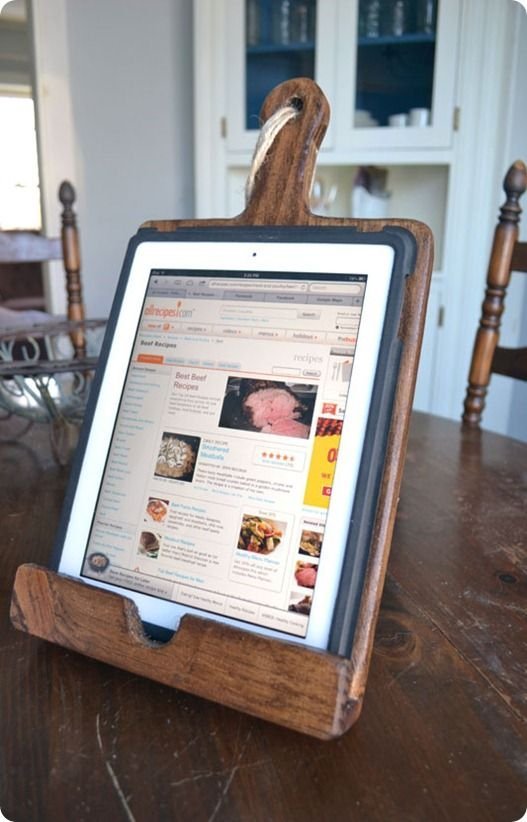
Kitchen command center: Mount it (a $15 stand) for recipes, timers, and measurement conversions. Old tablets are ideal here — splatter doesn’t matter on a device worth $0, and the big screen beats squinting at a phone with floury hands. Digital photo frame: Install Google Photos or a slideshow app, plug it in permanently, and mount it on a wall. A dedicated photo frame costs $100+; your drawer tablet does it better. Smart home dashboard: Run Home Assistant, Google Home, or Alexa app as a wall-mounted control panel for lights, thermostat, and cameras.
Kids’ device: Factory reset, install only kid apps, enable parental controls (see how to set up parental controls) — now it’s a worry-free tablet for the backseat. E-reader and comics: Even ancient tablets make fine e-readers with Kindle or Libby; the weight doesn’t matter on a stand. Security camera monitor: Dedicate it to your camera system’s app — a live-view station for the front door.
More Ideas: From Music to Donation
Dedicated music remote: Park it by the stereo running Spotify or Sonos control — no more unlocking your phone to skip tracks. Video call station: Set it up in the kitchen or workshop for hands-free calls while cooking or fixing things. Car entertainment: Load it with downloaded movies for road trips (airplane mode + downloads = no data needed). Second monitor: Apps like Duet Display or Splashtop turn it into a small extra screen for your laptop.
And if none of these appeal: donate it. Schools, senior centers, and shelters can use even old tablets — a factory reset and a charger is all it takes. Or trade it in: Apple, Samsung, and Best Buy offer small credits for ancient devices. Whatever you do, don’t just bin it — tablets contain batteries that shouldn’t go in landfills, and recyclers (Best Buy takes them free) handle them properly.
Prepping the Tablet for Its New Job
Start with a factory reset — clears years of cruft and often makes the tablet noticeably faster for single-purpose use. Then install only the apps needed for its new job; every extra app is a background process on old hardware. Disable automatic updates for apps (old tablets choke on new app versions), turn off unnecessary sync, and if the battery is shot, just leave it plugged in permanently — a tablet on a stand doesn’t need battery life.
Security note: if the tablet no longer gets OS updates, don’t use it for banking, email, or anything with passwords. Single-purpose offline-ish roles (photo frame, recipe display, music remote on your home network) are perfectly safe. For anything internet-facing, keep it on your home Wi-Fi behind your router’s firewall — and make sure that Wi-Fi is solid with our signal improvement guide.
Quick Answers
- Kitchen display: recipes, timers, conversions — splatter-proof peace of mind.
- Digital photo frame: slideshow app + wall mount beats a $100 dedicated frame.
- Smart home dashboard: wall-mounted control for lights, thermostat, cameras.
- Kids’ tablet: reset + parental controls = worry-free backseat entertainment.
- E-reader, camera monitor, music remote, video-call station — all great single-purpose roles.
- Prep: factory reset, install only needed apps, disable auto-updates.
- Security: no banking/email on tablets without OS updates; offline roles are safest.
- Last resort: donate to schools/shelters or recycle free at Best Buy — never landfill.
The Bottom Line
Your old tablet isn’t obsolete — it’s just done being a general-purpose computer. As a dedicated photo frame, kitchen display, smart home dashboard, or kids’ device, it has years of useful life left. The factory reset + single-purpose formula works every time.
The most sustainable gadget is the one you already own. Give the drawer tablet a job, and you’ll wonder why you ever considered throwing away a perfectly good screen.
Frequently Asked Questions
Is it safe to use an old tablet that no longer gets updates?
For offline or single-purpose roles (photo frame, recipe display, music remote on home Wi-Fi): yes, perfectly safe. For banking, email, shopping, or anything with passwords: no — unpatched vulnerabilities are real risks. The rule: no updates = no sensitive accounts. A 2015 tablet showing family photos is fine; the same tablet logging into your bank is not. Match the job to the security level.
Can I install a newer Android version on an old tablet?
Sometimes — custom ROMs like LineageOS support many older tablets and bring modern Android versions with security patches. But it requires technical comfort (unlocking bootloaders, flashing firmware), risks bricking the device, and doesn’t work on all models. For a single-purpose second life, it’s usually unnecessary — the stock OS runs a photo frame fine. Consider it only if you want the tablet for internet-facing tasks and the hardware supports it.
What’s the best app for turning a tablet into a photo frame?
Google Photos’ slideshow/ambient mode is the simplest for Android tablets; iPads work well with the built-in Photos slideshow or dedicated apps like LiveFrame. For a fancier setup, apps like Fotoo or Pixgram add weather, clock, and mixed sources. Pro tip: disable notifications and enable guided access / screen pinning so the slideshow can’t be accidentally exited. A $15 wall mount completes the transformation from drawer clutter to conversation piece.
Should I recycle or donate my old tablet?
Donate if it works — schools, senior centers, shelters, and refugee programs need tablets constantly, and even a 2018 tablet transforms someone’s access to information. Factory reset it first and include a charger. Recycle if it’s truly dead — Best Buy takes electronics free, and many municipalities have e-waste days. Never landfill: batteries leach chemicals, and the rare metals inside are recoverable. The iFixit tablet repair guides can even help you fix minor issues before donating — a new battery can resurrect a ‘dead’ tablet for $20.