How Can I Improve My Home Wi-Fi Signal Without Buying a New Router?
How Can I Improve My Home Wi-Fi Signal Without Buying a New Router?

Your Wi-Fi is sluggish, the back bedroom is a dead zone, and every article tells you to buy a $200 mesh system. But what if you don’t want to spend money? How can I improve my home wifi signal without buying a new router? Turns out your current router is probably capable of much more than it’s delivering right now.
Most weak Wi-Fi is a placement and settings problem, not a hardware problem. I’ve fixed dozens of ‘bad Wi-Fi’ situations without anyone buying anything. Here are the fixes, roughly in order of impact.
How can I improve my home wifi signal without buying a new router?
Placement: The Free Fix That Changes Everything
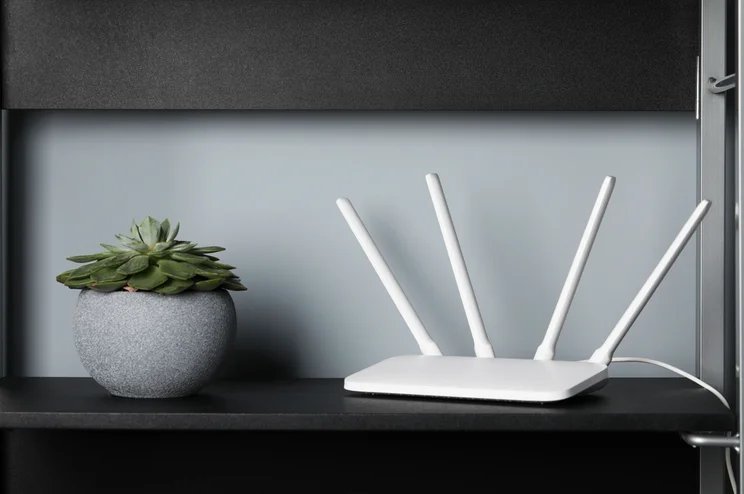
Your router’s location determines everything. The ideal spot: centrally located in your home, elevated (on a shelf, not the floor), out in the open (not in a cabinet, closet, or behind the TV), and away from thick walls, mirrors, metal objects, and microwaves. Every foot of elevation and every wall avoided translates directly to signal strength.
I’ve seen moving a router from the floor behind a TV cabinet to a central hallway shelf take a home from constant buffering to flawless streaming. It takes two minutes. While you’re at it, point the antennas correctly: on multi-antenna routers, position some vertically and some horizontally — devices are held at all angles, and mixed antenna orientation covers more of them. It sounds like folk wisdom, but the physics is real.
Settings Tweaks That Unlock Hidden Performance
Log into your router’s admin page (usually 192.168.1.1 or 192.168.0.1 — the address is on the router’s sticker) and check three things. First, firmware updates: manufacturers quietly fix performance bugs, and most people never update. Second, the Wi-Fi channel: use a free analyzer app to find the least congested channel — on 2.4 GHz, stick to channels 1, 6, or 11. Your router’s ‘auto’ setting is often lazy about this.
Third, check whether your router is broadcasting both 2.4 GHz and 5 GHz with the same network name (band steering). Sometimes this confuses devices into clinging to the wrong band. Giving the bands separate names (like ‘Home’ and ‘Home-5G’) lets you manually put stationary devices on 5 GHz for speed and distant devices on 2.4 GHz for range. Also look for QoS (Quality of Service) settings — prioritizing video calls over background downloads can transform work-from-home call quality without touching your internet speed plan.
The Almost-Free Upgrades
If free fixes aren’t enough, a few cheap moves help enormously. Restart your router weekly — either manually or with a $10 outlet timer that power-cycles it at 3 AM. This clears memory leaks that slowly degrade performance. Check for bandwidth hogs: one device uploading huge files (cloud backup, security camera uploads) can saturate your connection — pause heavy uploads during work hours.
A DIY reflector behind the router’s antennas (curved aluminum foil or a cut soda can) can genuinely direct signal toward the rooms you use — it looks ridiculous and works surprisingly well for a single dead direction. And don’t forget the device side: updating your phone and laptop Wi-Fi drivers, or a $15 USB Wi-Fi adapter for an old laptop with a weak internal card, can fix what looks like a router problem. If one specific room is the issue, our dead-room diagnosis guide goes deeper.
Quick Answers
- Relocate: central, elevated, open — not in cabinets or behind the TV. Biggest free win.
- Antennas: mix vertical and horizontal orientations.
- Update firmware via the router admin page (192.168.1.1).
- Change channels: use an analyzer app; 1, 6, or 11 on 2.4 GHz.
- Separate band names so you can choose 5 GHz (speed) vs 2.4 GHz (range) manually.
- Weekly reboot: manual or a $10 outlet timer at 3 AM.
- Find bandwidth hogs: pause big uploads during work/video hours.
- DIY reflector: foil behind antennas to aim signal — silly-looking, actually works.
The Bottom Line
You can improve your home Wi-Fi signal without buying a new router by fixing placement, updating firmware, choosing better channels, and managing bandwidth hogs. These free fixes resolve the majority of weak-Wi-Fi complaints — the router you have is usually fine; it’s just badly positioned or badly configured.
Only consider new hardware after you’ve done all of this for a week. And if you do eventually upgrade, you’ll know exactly what problem you’re solving instead of throwing $200 at a guess. Most people never need to — the free fixes were the answer all along.
Frequently Asked Questions
Will a Wi-Fi extender slow down my network?
Traditional extenders halve bandwidth on the repeated signal (they use the same radio to receive and rebroadcast), so yes — somewhat. For browsing and streaming in a dead room, the trade-off is worth it: half of a good signal beats all of nothing. But don’t extend an already-weak signal; place the extender where reception is still decent. Mesh systems avoid this penalty entirely (dedicated backhaul radios), which is why they’re worth the premium for whole-home coverage.
How often should I restart my router?
Weekly is the sweet spot for most consumer routers — it clears memory leaks and stuck processes that accumulate. A $10 outlet timer doing it at 3 AM automates the habit. If your router needs daily restarts to function, it’s dying or deeply underpowered for your household — that’s a replacement signal, not a routine. Enterprise-grade routers go months; if yours can’t go a week, the hardware is the problem.
Does the number of connected devices slow Wi-Fi?
Yes, but not how most people think — it’s not bandwidth division, it’s airtime contention. Each device takes turns talking to the router, and chatty IoT devices (cameras, smart speakers) consume airtime disproportionately. A dozen idle phones are fine; thirty smart home gadgets plus 4K streaming can strain old routers. Modern Wi-Fi 6 routers handle device density far better (OFDMA lets them serve multiple devices simultaneously). If your smart home keeps growing, router age matters more than internet speed.
Is my router too old?
If it’s 5+ years old, single-band, or pre-Wi-Fi 5 (802.11ac), yes — you’re leaving significant performance on the table, especially with many devices. But try the free fixes first: old routers in good positions with clean channels often surprise people. Replace when: it needs constant restarts, can’t cover your space after optimization, or lacks modern security (WPA3). A $80–$120 Wi-Fi 6 router is the sensible upgrade; skip the $400 gaming routers unless you know why you need one. The evolution of Wi-Fi standards shows how much efficiency has improved — a 2026 router does far more with the same airwaves.