What Should I Do If I Get a Pop-Up Saying My Computer Has a Virus?
What Should I Do If I Get a Pop-Up Saying My Computer Has a Virus?

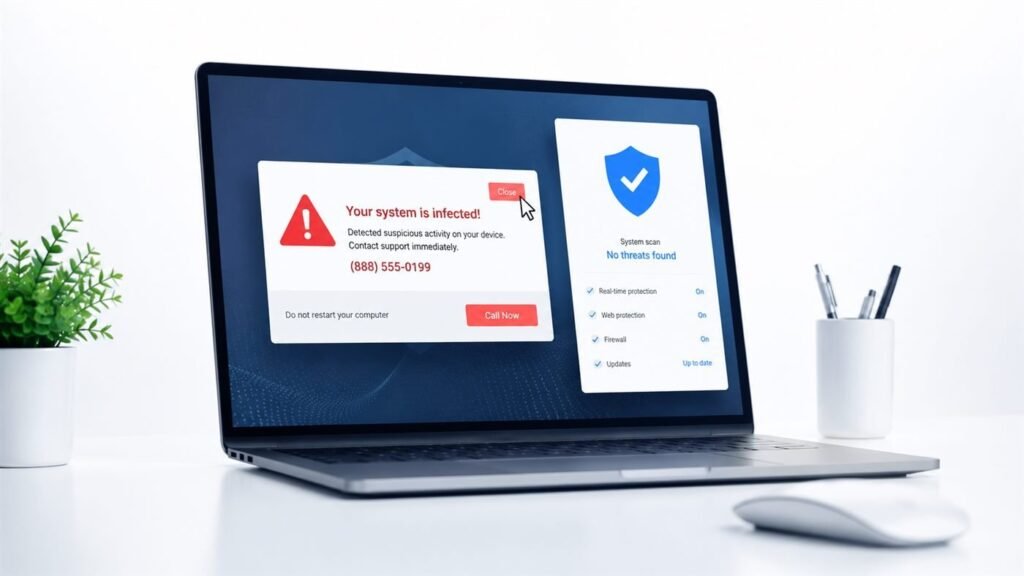
You’re browsing normally when suddenly: a full-screen warning, alarming red text, a robotic voice announcing ‘Your computer has been infected!’ and a phone number to call immediately. Your heart races. What should I do if I get a pop-up saying my computer has a virus?
Here’s the most important thing in this entire article: it is a scam. Real antivirus software never announces infections via browser pop-ups with phone numbers. Close the tab, don’t call, don’t download anything. Now let me walk you through exactly what to do.
What should I do if I get a pop-up saying my computer has a virus?
Why It’s Fake (and How the Scam Works)
Legitimate security software — Windows Security, Malwarebytes, Bitdefender — alerts you through its own app interface or the system notification center. It never opens a browser pop-up, never uses scare countdown timers, never plays alarm sounds, and absolutely never asks you to call a phone number. The pop-up you saw came from a malicious ad or compromised website, designed to look like a system warning.
The scam has two goals: either you call the number, where ‘technicians’ (scammers) talk you into paying hundreds for fake repairs and install remote-access software to steal your data — or you click the pop-up’s button, which downloads actual malware. The FTC receives tens of thousands of complaints about tech support scams yearly, with median losses in the hundreds of dollars. Elderly victims are disproportionately targeted, so share this article with your parents.
What to Do Right Now: Step by Step
Step 1: Don’t click anything inside the pop-up — not the X, not ‘close,’ nothing. Malicious pop-ups make the entire window clickable. Instead, close the browser tab with Ctrl+W (or Cmd+W on Mac), or kill the browser entirely with Task Manager (Ctrl+Shift+Esc) if the pop-up hijacked fullscreen — press F11 first to exit fullscreen, then close. Step 2: Don’t call any number shown. Ever. Step 3: Clear your browser cache and run a scan with your real antivirus (Windows Security’s full scan is fine for this).
Step 4: If you clicked anything or downloaded anything before realizing it was fake, disconnect from the internet and run a full scan with Windows Security plus a second-opinion scan from the free Malwarebytes. If you called the number and gave anyone remote access or payment info: disconnect immediately, contact your bank, and consider the machine compromised — a clean OS reinstall is the safe move. Also change passwords for important accounts from a different device, since scammers often install keyloggers.
Preventing It Next Time
Use an ad blocker — uBlock Origin (free) blocks the malicious ads that serve most of these pop-ups, and it’s the single most effective prevention. Keep your browser updated. Be skeptical of sites that trigger these: free streaming sites, sketchy download portals, and ‘you won!’ pages are the usual sources. And know the tell-tale signs: urgency, phone numbers, claims that ‘Windows’ or ‘Apple’ detected something via your browser, and demands for gift card payments.
Set up the real protections: make sure Windows Security is active (it is by default — don’t disable it for a ‘better’ free antivirus from a pop-up ad), keep automatic updates on, and use a password manager (see the best way to store passwords) so a scare can’t trick you into typing credentials anywhere. If you’re ever unsure whether a warning is real, close everything and open your antivirus app directly — if it’s silent, you were being scammed.
Quick Answers
- It’s fake: real antivirus never warns via browser pop-ups with phone numbers. Never call the number.
- Close safely: Ctrl+W for the tab, or Task Manager to kill the browser — don’t click inside the pop-up.
- Then: clear browser cache, run a full Windows Security scan.
- If you clicked/downloaded: disconnect, scan with Malwarebytes too; consider a clean OS reinstall.
- If you called/paid: contact your bank immediately, change passwords from another device.
- Prevention: uBlock Origin ad blocker, updated browser, skepticism toward free streaming/download sites.
- Tell your parents: elderly users are the top targets of tech support scams.
The Bottom Line
If you get a pop-up saying your computer has a virus: it’s a scam. Don’t call, don’t click, just close the browser tab and run a real scan. The whole thing is theater designed to panic you into paying fake technicians.
Install uBlock Origin, keep your real antivirus active, and remember the golden rule: Microsoft and Apple will never ask you to call a phone number from a browser warning. Once you know what these scams look like, they’re almost funny — almost.
Frequently Asked Questions
How do I tell a real virus warning from a fake one?
Real warnings come from your installed antivirus app’s own interface or the OS notification center — never from a webpage, never with a phone number, never with countdown timers or alarm sounds. The test: close the browser completely. If the ‘warning’ disappears with the browser, it was a webpage — fake. Real threats persist in your security app. When in doubt, open your antivirus directly and run a scan; silence there means the pop-up was theater.
I called the number — what do I do now?
Act immediately: if you gave remote access, disconnect from the internet and assume the machine is compromised — back up personal files from a clean boot and reinstall the OS. If you paid, contact your bank/card issuer to dispute the charge and request a new card number. Change passwords for email, banking, and important accounts from a different clean device. File reports with the FTC (ReportFraud.ftc.gov) and the FBI’s IC3. Don’t feel embarrassed — these scammers are professionals who do this thousands of times; embarrassment is what stops victims from acting fast.
Can these pop-ups actually infect my computer?
The pop-up itself is just a webpage — it can’t infect you by appearing. Infection requires you to do something: click a download button, install their ‘scanner,’ or grant remote access. That’s why the golden rule is ‘don’t click inside the pop-up’ — the entire window can be rigged, including the X button. Close via the tab (Ctrl+W) or kill the browser from Task Manager. No click, no infection — the pop-up is a con artist, not a virus.
Why do these pop-ups show my location or IP address?
To scare you — any website can see your approximate location and IP; it’s basic internet functionality, not hacking. The pop-up displays it as ‘proof’ they’ve ‘detected’ you, which impresses non-technical users. It’s the digital equivalent of a fortune teller guessing you’re worried about money. Knowing this trick defuses the fear instantly. The FTC’s tech support scam guide documents these tactics officially — worth sharing with anyone who might fall for them.
Are Mac users targeted by these pop-up scams too?
Yes — the pop-ups detect your browser and show matching fake warnings (‘Apple Security Alert’ on Safari, ‘Windows Defender’ on Edge). Mac users sometimes feel immune, which makes them easier targets. The same rules apply: close the tab, never call, never download. And the same skepticism belongs everywhere online — our guide to spotting scam websites covers the broader pattern these pop-ups fit into. No operating system protects against social engineering; only knowledge does.