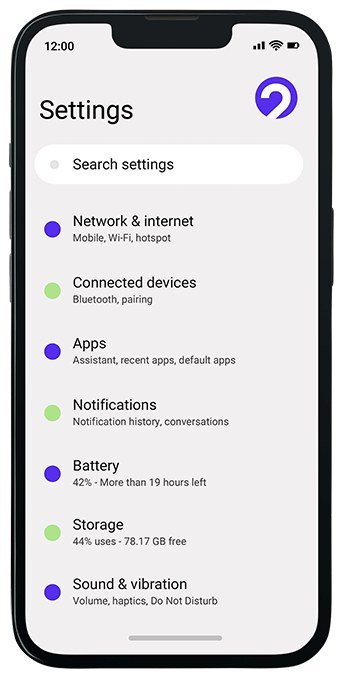
How do I turn off AI features I do not want on my phone
Your phone just started summarizing your notifications without asking. Your keyboard is suggesting replies you didn’t request. There’s an AI button in an app you use daily, and you never opted in. If you’re thinking “I didn’t ask for any of this,” you’re not alone — and yes, you can turn most of it off. Here’s how to turn off AI features you don’t want on your phone, on both iPhone and Android.
Quick note: you probably don’t want to disable everything. Spam filtering, autocorrect, and camera enhancements are AI too, and they’re genuinely useful. This guide is about the intrusive stuff — the features that summarize, generate, interrupt, or send your data places without clear benefit to you.
How to Turn Off AI Features on iPhone
Apple Intelligence
Apple’s AI suite is the main source of unwanted features. To disable it entirely: Settings → Apple Intelligence & Siri → turn off Apple Intelligence. This kills notification summaries, writing tools, Genmoji, Image Playground, and Siri’s ChatGPT integration in one switch.
For surgical control instead of the nuclear option:
- Notification summaries: Settings → Notifications → Summarize Notifications → turn off (or disable per-app).
- Siri suggestions: Settings → Apple Intelligence & Siri → Siri Suggestions → toggle off where desired.
- ChatGPT integration: Settings → Apple Intelligence & Siri → ChatGPT → turn off.
- Writing Tools: only activate when you invoke them — safe to ignore.
Other iPhone AI-ish Features
- Predictive text: Settings → General → Keyboard → turn off Predictive Text and Inline Predictions.
- Photos Memories: Settings → Apps → Photos → turn off Show Featured Content.
- Siri entirely: Settings → Apple Intelligence & Siri → turn off “Talk to Siri.”
- Safari summaries: reader-view AI summaries can be ignored — they only appear when invoked.
How to Turn Off AI Features on Android
Google AI Features
- Gemini as assistant: Gemini app → profile → Settings → turn off “Gemini” as default assistant to revert to classic Google Assistant (or disable voice assistant entirely).
- AI Overviews in Search: no direct toggle exists. Workarounds: use the “Web” tab for traditional results, or switch your default search engine.
- Circle to Search: Settings → Display (or Gestures) → turn off if you trigger it accidentally.
- Call Screening: Phone app → Settings → Spam and Call Screen → adjust to your comfort level. (Though our robocall guide argues this one’s worth keeping.)
Samsung Galaxy AI
Settings → Galaxy AI — this central panel lets you disable features individually (Chat Assist, Note Assist, Photo Assist, etc.). Samsung processes some AI on-device (better privacy) and some in the cloud — the settings indicate which.
App-Level AI
Don’t forget individual apps: Meta AI in WhatsApp/Instagram/Facebook (limited opt-outs — you can avoid engaging), Microsoft Copilot in Office apps (toggle in each app’s settings), and keyboard AI features (Gboard settings → turn off Smart Compose equivalents).
The Privacy Angle: What “Off” Really Means
Disabling features stops the visible behavior, but understand the data picture: on-device AI never sends your data to servers — the most private. Cloud AI sends your inputs for processing — check whether they’re used for training (see our AI privacy guide). Turning a feature off typically stops new data collection, but doesn’t delete historical data — check privacy dashboards to review and delete.
What to Keep On (My Honest Recommendation)
I’d keep: spam call/text filtering, autocorrect, camera enhancements, and live voicemail transcription. Turn off: notification summaries (if they annoy you), unsolicited writing suggestions, and any assistant that activates without your clear intent. Revisit yearly — every OS update adds new AI features with new toggles, and defaults usually favor “on.”
Disabling Phone AI: Frequently Asked Questions
Will turning off AI features make my phone worse?
Barely — and in some ways better. You’ll lose notification summaries, suggested replies, and generative features you probably didn’t ask for. You keep the essentials: spam filtering, autocorrect, camera processing, and voice recognition all work independently. Most people who disable the intrusive AI report their phone feels calmer — fewer interruptions, fewer surprises, more predictability. Try it for two weeks; you can re-enable anything you miss in seconds.
Does turning features off stop data collection?
It stops new collection for those features, but it doesn’t delete historical data — visit your privacy dashboards (Google My Activity, Apple privacy settings) to review and delete what’s stored. Also understand the distinction: on-device AI never sent your data anywhere, so there was nothing to collect; cloud AI did, and turning it off stops the flow going forward. “Off” means “stop,” not “erase.” For the regulatory backdrop on mobile privacy, the FCC’s consumer privacy resources explain your rights regarding carrier and device data practices.
Why do new AI features keep turning themselves on?
Because defaults favor engagement, and every OS update resets the board. Apple, Google, and Samsung all add AI features with each release, usually defaulted on. Make it a yearly ritual: after each major OS update, spend 10 minutes reviewing new AI settings and disabling what you don’t want. It’s the price of staying in control — small, but recurring.
Can I remove the AI button from my apps?
Sometimes. Many apps let you hide or disable AI assistants in their settings (look for the AI feature’s name in each app’s preferences). Some — particularly Meta’s apps — offer limited opt-outs beyond simply not engaging. If an app’s AI intrusions bother you enough and can’t be disabled, consider alternatives: plenty of messaging, search, and productivity apps compete specifically on being AI-optional. Your attention is the product; spend it where you’re comfortable.
The Bottom Line on Disabling Phone AI
How do you turn off AI features you don’t want on your phone? iPhone: Settings → Apple Intelligence & Siri → off (or disable individual features). Android: Gemini app settings, Galaxy AI panel on Samsung, and per-app toggles elsewhere. You bought the phone — you decide what it does. Disable the intrusive stuff, keep the genuinely useful stuff, and revisit yearly as new features arrive with each OS update. For the bigger picture, see how AI quietly runs your everyday life.