Why Is My Laptop So Slow After Installing the Latest Windows Update?
Why Is My Laptop So Slow After Installing the Latest Windows Update?

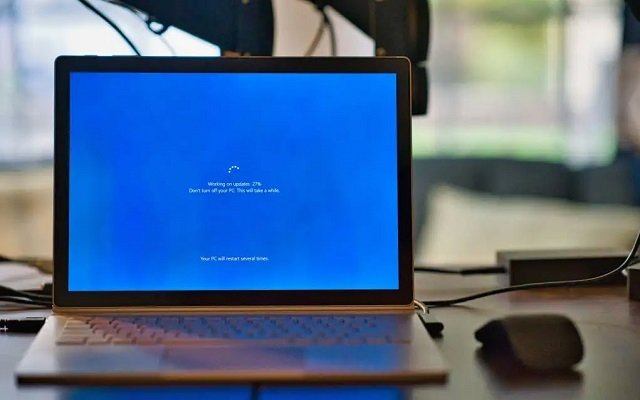
You clicked ‘update and restart’ before bed, woke up to a fresh Windows version, and now your laptop moves like it’s wading through mud. Programs take forever to open, the fan sounds like a jet engine, and you’re wondering why is my laptop so slow after installing the latest windows update — didn’t updates supposedly make things better?
You’re not imagining it, and you’re definitely not alone. Post-update slowdowns are one of the most common Windows complaints, and the good news is they’re usually temporary or fixable. I’ve walked dozens of people through this. Let’s figure out what’s actually slowing you down and fix it step by step.
Why is my laptop so slow after installing the latest windows update?
Why Windows Updates Slow Your Laptop Down
Right after a major update, Windows is doing a ton of background work you’re not seeing. It’s re-indexing your files for search, optimizing apps, rebuilding caches, and sometimes re-downloading driver updates. On an older machine with a spinning hard drive, this background churn can make the laptop nearly unusable for a few hours. On an SSD it’s usually milder — maybe a day of sluggishness.
The other culprit is driver conflicts. A big Windows update can replace your graphics or chipset drivers with generic Microsoft versions that don’t play nice with your hardware. That’s when you get the fan screaming, stuttering video, or battery drain. And occasionally an update just has a bug — Microsoft has shipped updates that caused 100% disk usage on certain machines, fixed later by a patch.
First: Give It 24 Hours (Seriously)
Before you change anything, let the laptop sit plugged in and connected to Wi-Fi for a full day. I know that’s annoying advice, but roughly half of post-update slowdowns resolve themselves once Windows finishes its background indexing and optimization. Check Task Manager (Ctrl+Shift+Esc) and look at the Disk and CPU columns — if ‘Windows Modules Installer’ or ‘Antimalware Service Executable’ is hammering your system, that’s the update still settling in.
If after 24–48 hours it’s still slow, then it’s time to act. Don’t wait a week hoping it’ll magically improve — at that point something is genuinely stuck or conflicting, and the fixes below will sort it out.
9 Fixes for a Slow Laptop After a Windows Update
Work through these in order. Most people find their problem in the first four.
Quick Answers
- 1. Check for follow-up updates: Go to Settings > Windows Update and install everything pending. Microsoft often ships a fix within days of a buggy update.
- 2. Update your drivers: Visit your laptop maker’s support site (Dell, HP, Lenovo) and grab the latest chipset and graphics drivers. Don’t rely on Windows alone for these.
- 3. Disable heavy startup programs: In Task Manager > Startup apps, disable anything you don’t need at boot — updaters, chat apps, game launchers.
- 4. Run Disk Cleanup: Search ‘Disk Cleanup,’ select your drive, and check ‘Windows Update Cleanup’ — old update files can eat 10–20 GB.
- 5. Turn off background apps: Settings > Apps > Installed apps — stop apps you never use from running in the background.
- 6. Check your storage: If your drive is over 85% full, Windows slows to a crawl. Free up space or move files to an external drive.
- 7. Scan for malware: Run a full Windows Security scan — occasionally slowness blamed on an update is actually something nastier.
- 8. Roll back the update: Settings > Windows Update > Update history > Uninstall updates. You have 10 days to roll back a feature update.
- 9. Reset with ‘Keep my files’: The nuclear option that usually works — Settings > Recovery > Reset this PC, keeping your files.
The Bottom Line
So why is your laptop so slow after installing the latest Windows update? Nine times out of ten, it’s background re-indexing that resolves in a day, a driver that needs updating, or update leftovers clogging your disk. The fixes above handle all three.
One honest piece of advice: if your laptop is 5+ years old and every update makes it worse, it might be time to weigh whether repairing it is worth it or you should buy new. And if the machine is really struggling, check why your laptop fan runs so loud when you open a browser — the two problems often share a cause. But for most people, a little patience plus a driver update gets things back to normal.
Frequently Asked Questions
How long should I wait before assuming the update broke something?
Give it 48 hours of being plugged in and connected to Wi-Fi. Windows does enormous background work after major updates — indexing, driver staging, app optimization — and interrupting it causes more problems. If Task Manager shows installer or indexing processes active, it’s still working. Past 48 hours with no improvement, start the fix list. Waiting a week ‘hoping’ rarely helps; at that point something is genuinely stuck.
Can a Windows update damage my hardware?
Essentially no — updates don’t damage hardware. What they can do is expose existing hardware problems (a dying hard drive that finally chokes under re-indexing load) or install incompatible drivers that make hardware misbehave. If your laptop suddenly overheats or the fan screams after an update, that’s usually a driver issue, not damage. The official Microsoft Windows support pages document known update issues and their fixes.
Should I pause Windows updates to avoid this in the future?
Pausing for 1–2 weeks after a major feature update releases is actually smart — it lets Microsoft fix the first wave of bugs before they reach you. But don’t pause indefinitely; security updates patch real vulnerabilities. Set ‘active hours’ so restarts don’t interrupt work, and keep a system restore point before big updates. A little caution beats both the chaos of day-one updates and the risk of unpatched security holes.
Will upgrading to an SSD fix post-update slowness permanently?
For laptops still on spinning hard drives, yes — dramatically. Most post-update agony (100% disk usage, endless indexing) barely registers on an SSD. A $40–$80 SSD is the single best upgrade for an old laptop and makes every future update dramatically less painful. If your laptop is from the hard-drive era and struggling, this upgrade matters more than any software tweak in this article.
Pingback: Repair a 5-Year-Old Laptop or Buy New? Honest Answer