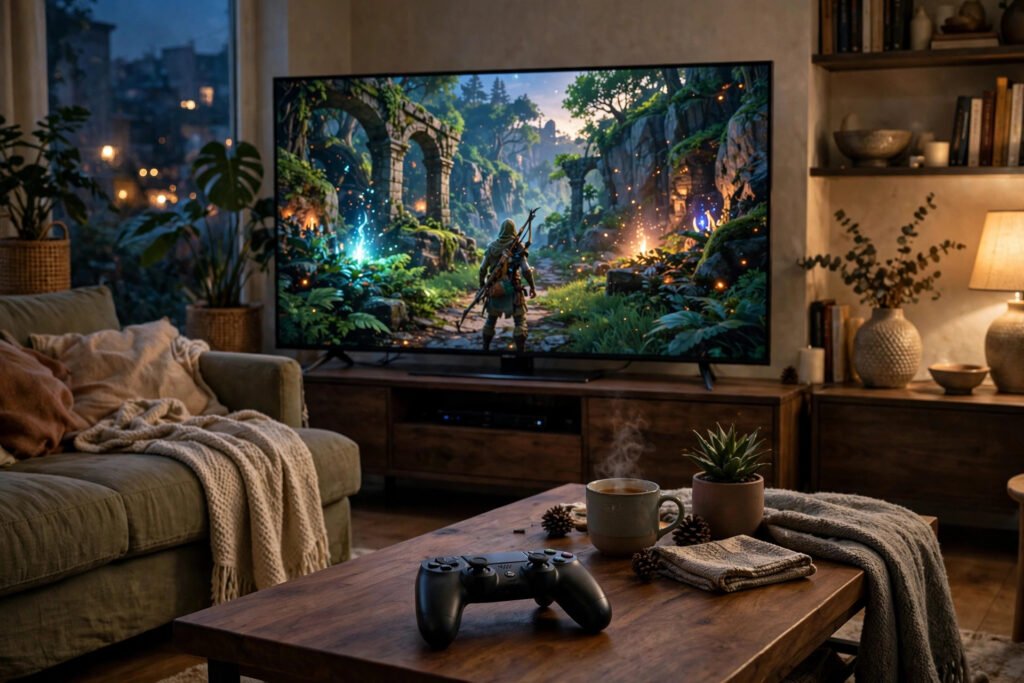
How to Stream Games From Your PC to Your TV: Setup Guide easily.
Your gaming PC is a $1,500 powerhouse. Your TV is a 65-inch 4K beauty. And yet you’re hunched at a desk playing on a 27-inch monitor while the couch sits empty. Streaming games from your PC to your TV closes that gap — your PC does the heavy rendering, your TV just displays the video feed, and you play from the couch with a controller. When it works, it feels like magic. Here’s how to set it up properly, because the difference between “magic” and “laggy mess” is entirely in the configuration.
What You Need: The Non-Negotiable Foundation
Game streaming is brutally honest about your network. The #1 requirement: a wired Ethernet connection for the PC, and ideally for the TV-end device too. Wi-Fi adds latency and jitter that no software can fully fix — a $15 Ethernet cable improves streaming more than any settings tweak. If running cable to the TV is impossible, a powerline adapter or MoCA (coax) adapter is the next best thing; both beat Wi-Fi for consistency.
Beyond that: a PC with an Nvidia or AMD GPU from the last decade (hardware video encoding is essential), a TV-end device (more below), and a controller with low-latency wireless — Xbox controllers over USB or the Xbox Wireless Adapter beat Bluetooth for latency. Your internet speed doesn’t matter for in-home streaming (it never leaves your house); your local network quality is everything.
Option 1: Steam Link (Easiest, Free)
Valve’s Steam Link is the simplest path: install the Steam Link app on your TV-end device (available on most smart TVs, Apple TV, Fire TV, Raspberry Pi, or a phone/tablet), make sure your PC runs Steam, and pair them on the same network. Steam handles discovery, encoding, and controller mapping automatically. It streams your whole Steam library plus, with a few clicks, non-Steam games and even the desktop.
Steam Link’s “fast” streaming preset prioritizes latency over image quality — start there, then raise quality if your network handles it. The Steam support documentation covers the per-device setup quirks, which vary more than you’d expect between TV brands.
Option 2: Moonlight + Sunshine (Best Quality)
For the best image quality and lowest latency, the enthusiast choice is Moonlight (client) paired with Sunshine (host). Sunshine replaces Nvidia’s discontinued GameStream on the PC side, capturing and encoding with minimal overhead; Moonlight clients exist for nearly everything — smart TVs, streaming sticks, phones, tablets. The combination consistently benchmarks lower latency and better image quality than Steam Link, at the cost of more setup.
The setup: install Sunshine on the PC, configure it to capture your display, install Moonlight on the TV device, pair with the PIN. Then tune: 1080p at 60fps is the sweet spot for most networks; 4K streaming needs a genuinely robust wired network and a strong GPU encoder. Nvidia’s encoding documentation explains the NVENC settings that determine quality — the short version is that newer GPUs encode dramatically better than older ones.
Dialing In Settings: The Latency Budget
Total streaming latency has four components: encode (PC), network transit, decode (TV device), and display lag (the TV itself). You can attack each: encode via GPU hardware encoding (never CPU); network via Ethernet everywhere; decode by using a capable client device (a $30 Fire Stick decodes worse than an Apple TV or Shield); display by enabling your TV’s Game Mode, which can cut 50–100ms of processing lag — the single biggest win most people miss.
Target numbers: under 30ms total added latency feels nearly native for most games; 30–60ms is playable for everything except competitive shooters; over 60ms and you’ll feel it. Measure with Moonlight’s built-in latency overlay rather than guessing — optimize what you measure.
What to Play (and What to Avoid)
Couch-streamed PC gaming shines for: story-driven single-player games, RPGs, racing games, platformers, and local co-op — anything where a controller is natural and 30ms of latency is invisible. It’s marginal for competitive online shooters (where you’re adding latency on top of internet latency) and poor for competitive fighting games (where frame-perfect timing matters).
Controller choice matters more than people think: the Xbox Wireless Adapter or a wired connection beats Bluetooth measurably. And keep a wireless keyboard with a touchpad nearby — you’ll need it for launchers, settings, and the inevitable “press any key” moments. For the display side of the equation, knowing why your smart TV buffers on some apps helps diagnose whether issues are network or device — and if your TV is older, the best streaming stick for an older TV doubles as a Moonlight client.
Beyond the Living Room: Streaming Everywhere
Once in-home streaming works, the same setup extends further. Moonlight and Steam Link both support streaming over the internet — play your home PC from a hotel, a friend’s house, or your phone on a trip. The requirements invert: now your home’s upload speed matters (20+ Mbps for 1080p), and latency depends on distance. It won’t match the in-home experience, but for turn-based games, RPGs, and strategy titles, remote streaming is remarkably usable.
The handheld angle is worth knowing too: a phone or tablet with a clip-on controller becomes a portable extension of your PC anywhere in the house — the couch, the porch, bed. Cloud gaming services offer a similar promise without owning the PC, but self-streaming wins on library (your entire existing collection), cost (free after hardware you own), and latency (your local network beats any data center). The PC you already have is the best cloud gaming server you’ll ever use.
Conclusion
Streaming games from PC to TV is a solved problem with a clear formula: Ethernet everywhere, Steam Link for simplicity or Moonlight+Sunshine for quality, Game Mode on the TV, and realistic expectations about which genres suit the couch. Do the network foundation right and the rest is configuration; skip it and no software will save you. Your $1,500 PC deserves better than a desk chair — give it the big screen.
Frequently Asked Questions
Do I need fast internet to stream games from PC to TV?
No — in-home streaming never leaves your local network, so internet speed is irrelevant. What matters is your home network: wired Ethernet for the PC (and ideally the TV device) is the key requirement.
What’s better: Steam Link or Moonlight?
Steam Link is easier to set up and fine for most people. Moonlight with Sunshine delivers lower latency and better image quality but needs more configuration. Try Steam Link first; upgrade if you notice the difference.
Is 4K game streaming worth it?
Only with a robust wired network and a strong GPU encoder. Most players find 1080p at 60fps the sweet spot — 4K quadruples bandwidth needs for diminishing returns on a couch ten feet from the screen.
Can I stream non-Steam games to my TV?
Yes. Steam Link can add non-Steam games and stream the whole desktop; Moonlight+Sunshine captures anything on the PC’s display regardless of launcher.
Can I stream games to my phone too?
Yes — both Steam Link and Moonlight have mobile apps. Pair a Bluetooth controller and your phone becomes a portable window into your PC anywhere on your home network.
Why is my game stream laggy?
Check in order: Wi-Fi instead of Ethernet (most common), TV not in Game Mode (biggest display lag source), weak client device struggling to decode, and CPU instead of GPU encoding on the PC.