
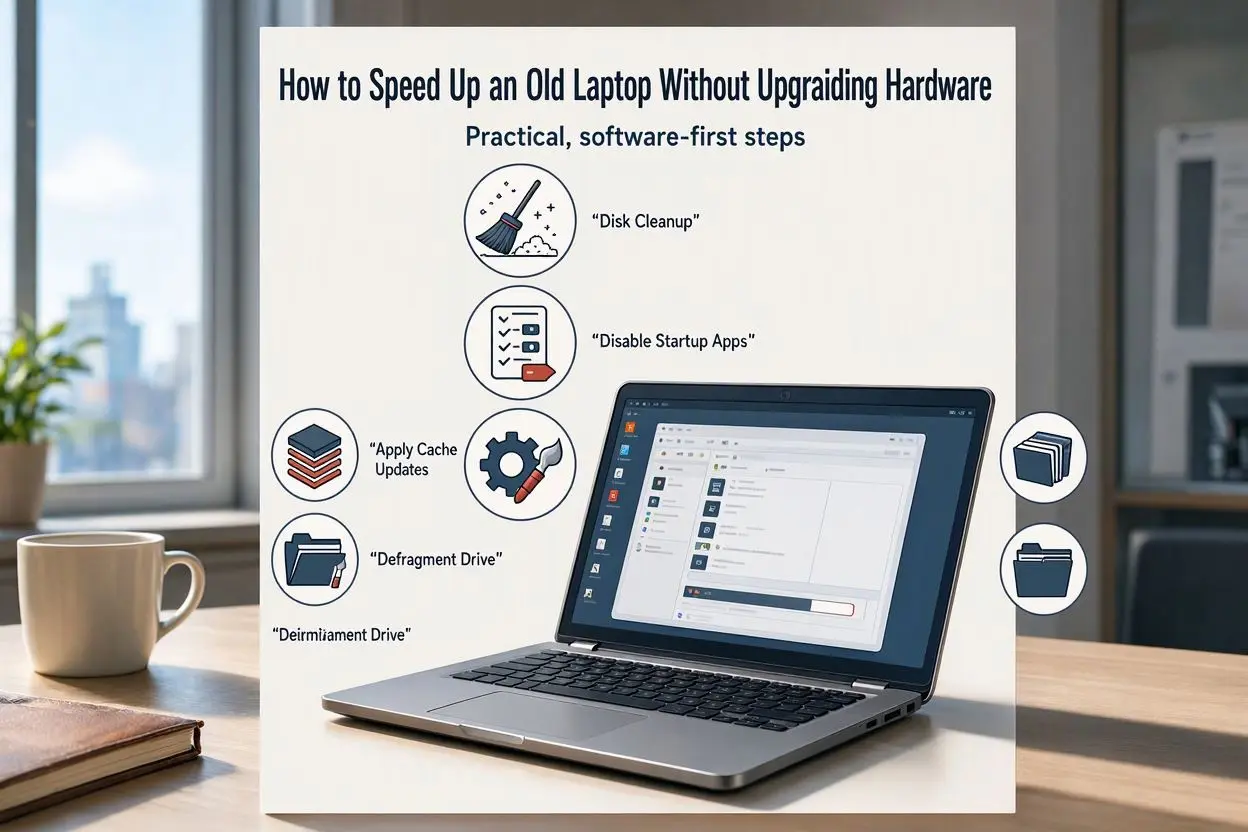
An old laptop can become slow over time. It may take several minutes to start, freeze when opening applications, or struggle to run multiple programs at once. These problems can make even simple tasks frustrating.
The good news is that you do not always need to buy a new laptop or upgrade its hardware. A few simple changes can improve your computer’s speed and make everyday tasks easier.
If you are wondering how to speed up an old laptop without upgrading hardware, this guide will help you. You will learn how to remove unnecessary programs, free up storage space, improve startup speed, and optimize your laptop for better performance.
1. Restart Your Laptop Regularly
One of the easiest ways to make an old laptop run faster is to restart it regularly.
When you use your laptop for a long time, background applications and temporary processes can consume memory and system resources. This can make your computer slower than usual.
Restarting your laptop closes many running processes and gives the operating system a fresh start.
What you should do:
- Save your work before restarting.
- Close unnecessary applications.
- Select Restart from the power menu.
- Allow your laptop to start completely before opening programs.
If you usually keep your laptop in sleep mode, try restarting it every few days.
2. Disable Unnecessary Startup Programs
Many applications automatically start when you turn on your laptop. Some of these programs are useful, but others may not be necessary.
Too many startup applications can increase boot time and slow down your computer.
On Windows 10 and Windows 11, you can manage these applications through Task Manager.
Follow these steps:
- Press Ctrl + Shift + Esc to open Task Manager.
- Select the Startup apps section. On some Windows versions, it may be called Startup.
- Review the applications listed there.
- Disable programs you do not need immediately after startup.
Avoid disabling security software, essential drivers, or applications you do not recognize.
Reducing startup programs can help your laptop start faster and leave more system resources available.
3. Uninstall Unused Applications
Over time, you may install many applications that you no longer use. Some programs run background services or start automatically, even when you rarely open them.
Removing unnecessary software can free up storage space and reduce background activity.
How to uninstall unused programs:
- Open Settings on your laptop.
- Go to Apps.
- Select Installed apps or Apps & features.
- Review the list of installed applications.
- Uninstall programs you no longer need.
Be careful not to remove important system applications or drivers.
If you have several unused applications, removing them can help keep your laptop organized and improve its overall performance.
4. Free Up Storage Space
A nearly full hard drive can make an old laptop slower, especially when Windows does not have enough free space for temporary files and system tasks.
Keeping some storage space available can help your computer work more smoothly.
Start by checking how much storage space is available on your laptop.
Easy ways to free up disk space:
- Delete unnecessary files from your Downloads folder.
- Empty the Recycle Bin.
- Remove duplicate documents and old videos.
- Uninstall large applications you no longer use.
- Move personal files to an external drive if you already have one.
You can also use the built-in Windows Storage settings to identify files that are taking up space.
Avoid deleting files from Windows system folders manually, as this may cause problems.
5. Use Windows Storage Cleanup Tools
Windows includes built-in tools that help remove temporary and unnecessary files.
These tools are useful when you want to clean your laptop without installing additional software.
On Windows 11, open Settings, select System, and then Storage. Review the temporary files category and remove files you no longer need.
On Windows 10, you can use Storage settings or Disk Cleanup.
To use Disk Cleanup:
- Search for Disk Cleanup in the Windows search box.
- Open the application.
- Select the drive you want to clean.
- Choose the temporary files you want to remove.
- Confirm the cleanup.
Review the selected files carefully before deleting them. Your Downloads folder may contain files you still need.
Regular storage cleanup can help maintain free disk space and reduce unnecessary clutter.
6. Close Background Applications
Running too many applications at the same time can slow down an old laptop.
For example, opening multiple browser windows, video editing software, music players, and other programs can use a large amount of RAM.
If your laptop has limited memory, this can lead to freezing, lag, and slow application loading.
Try these simple steps:
- Close applications you are not using.
- Keep only essential browser tabs open.
- Exit unnecessary applications running in the system tray.
- Avoid running multiple demanding programs simultaneously.
You can check Task Manager to see which applications are using the most memory and CPU resources.
Closing unnecessary programs is a simple way to improve laptop performance without spending money.
7. Reduce Visual Effects
Windows uses animations, shadows, and other visual effects to make the interface look attractive. However, these effects may affect performance on older computers.
Turning off some visual effects can make the desktop feel more responsive, especially on laptops with older processors or limited memory.
How to adjust visual effects:
- Press Windows + R.
- Type
sysdm.cpland press Enter. - Open the Advanced tab.
- Under Performance, select Settings.
- Choose Adjust for best performance, or manually disable effects you do not need.
- Click Apply.
This may make Windows look simpler, but it can reduce the workload on older hardware.
You can also keep useful options, such as smooth font edges, enabled for better readability.
8. Keep Windows and Drivers Updated
Outdated software can sometimes cause performance problems, bugs, or compatibility issues.
Installing appropriate Windows updates and device driver updates may improve stability and fix problems affecting your laptop.
To check for Windows updates:
- Open Settings.
- Select Windows Update.
- Check for available updates.
- Install appropriate updates.
- Restart your laptop if required.
For drivers, use Windows Update or the official support website of your laptop’s manufacturer.
Avoid downloading drivers from unfamiliar websites.
Keep in mind that updates do not always make an old laptop faster. Some updates may require additional resources, so check available storage and system requirements before installing major upgrades.
9. Scan Your Laptop for Malware
Malware and unwanted software can use system resources in the background. This may cause high CPU usage, slow performance, unwanted advertisements, or unexpected pop-ups.
A security scan can help identify and remove harmful software.
Windows includes Microsoft Defender, which provides built-in protection.
How to scan your laptop:
- Open Windows Security.
- Select Virus & threat protection.
- Choose Quick scan.
- Follow any recommended actions.
If you suspect a serious infection, consider running a full scan.
Keep your security software updated and avoid installing unknown applications or opening suspicious email attachments.
Removing malware can improve performance when malicious software is the cause of the slowdown.
10. Clean Your Laptop’s Vents
Dust can collect around your laptop’s air vents over time. When airflow is restricted, the laptop may become hot.
Excessive heat can cause a processor to reduce its speed to protect itself. This is known as thermal throttling.
If your laptop becomes unusually hot or its fan runs loudly, check whether its air vents are blocked.
Simple maintenance tips:
- Keep the laptop on a hard, flat surface.
- Avoid using it on blankets or pillows.
- Make sure the air vents are not blocked.
- Clean the exterior vents carefully.
- Seek professional cleaning if dust has built up inside.
Always turn off the laptop before cleaning it. Do not use liquids around the vents, and avoid opening the laptop unless you know how to do so safely.
Keeping your laptop cool can help it maintain consistent performance.
11. Make Your Web Browser Faster
A web browser can consume significant memory, particularly when many tabs and extensions are open.
If your laptop becomes slow while browsing the internet, your browser may be part of the problem.
Try the following tips:
- Close tabs you no longer need.
- Remove unnecessary browser extensions.
- Update your browser.
- Clear cached files if they are causing problems.
- Avoid running several browsers simultaneously.
You can also use your browser’s built-in task manager, if available, to identify tabs or extensions consuming too many resources.
Clearing your browsing data may sign you out of some websites, depending on what you choose to remove.
A cleaner browser can make everyday activities, such as checking email and reading articles, feel faster.
12. Change Your Power Mode
Some laptops use power-saving settings that reduce processor performance to conserve battery life.
If your laptop feels slow while running on battery, changing its power mode may help.
On Windows 11:
- Open Settings.
- Select System.
- Choose Power & battery.
- Find the Power mode setting.
- Select a performance-focused option if available.
Windows 10 offers similar settings through Power & sleep and Additional power settings.
The available options depend on your laptop and Windows version.
Higher-performance settings may use more battery power and generate additional heat. Use them when you need extra performance rather than leaving them enabled unnecessarily.
13. Turn Off Unnecessary Background Apps
Some applications continue working in the background even when you are not actively using them.
Depending on the application, background activity may consume memory, processor resources, and battery power.
Review your installed applications and turn off background permissions for programs that do not need them.
On Windows 11, open Settings and review the background activity permissions available under Installed apps. Some applications provide a background activity option in their advanced settings.
On Windows 10, certain applications have background permissions under Privacy settings.
Do not disable background activity for applications that need to receive important notifications or perform essential tasks.
14. Keep Your Desktop Organized
A desktop filled with shortcuts, large files, and folders can make it harder to find what you need.
On some older systems, a very cluttered desktop may also contribute to slower startup or desktop loading, although the effect varies.
Move large files into suitable folders and remove shortcuts you no longer use.
Keep frequently used applications and documents easy to access.
An organized desktop will not transform an outdated laptop into a new one, but it can make your daily work easier and help you manage files more efficiently.
15. Choose Lightweight Applications
Some modern applications require more memory and processing power than older laptops can comfortably provide.
If your laptop struggles with demanding software, consider using a lighter alternative for everyday tasks.
For example, you might use a basic text editor instead of a resource-heavy writing application, or a lightweight image editor for simple photo changes.
When choosing software, consider:
- Minimum system requirements.
- Memory usage.
- Compatibility with your operating system.
- Whether you actually need all the available features.
For web browsing, reducing the number of extensions and open tabs may be enough without changing browsers.
Lightweight applications can help an older computer feel more responsive.
16. Use a Lightweight Windows Setup
If your laptop is still slow after trying the previous methods, review the applications and optional features installed on your Windows system.
Remove unnecessary third-party utilities and avoid installing multiple applications that perform the same task.
You can also review which apps launch automatically and which notifications you really need.
A clean and simple software setup can reduce background activity.
However, avoid unofficial modified Windows versions or aggressive debloating scripts from unknown sources. They may remove important components, weaken security, or create system problems.
If you decide to reset Windows, back up your important files first and make sure you have the information needed to reinstall your applications.
17. Check Which Program Is Making Your Laptop Slow
Sometimes, one application is responsible for most of the slowdown.
Instead of changing every setting, identify the program that is using too many resources.
Open Task Manager by pressing Ctrl + Shift + Esc.
Check these sections:
- CPU: Shows which applications are using processing power.
- Memory: Shows which applications are using RAM.
- Disk: Shows how much disk activity is taking place.
- Startup apps: Shows programs that launch when Windows starts.
If one application consistently uses a large amount of CPU or memory when it should be idle, investigate it.
It may need an update, a settings change, or removal if you no longer use it.
This approach helps you focus on the actual cause of your laptop’s slow performance.
Common Mistakes to Avoid When Speeding Up an Old Laptop
While trying to make your laptop faster, avoid these common mistakes:
Installing too many PC cleaner apps: Some cleanup tools run continuously in the background and may slow down your computer.
Disabling every startup application: Important security and hardware-related services may be affected.
Deleting random system files: Removing essential Windows files can cause errors or prevent your computer from starting.
Ignoring overheating: Software changes will not fully solve performance problems caused by excessive heat.
Running too many antivirus programs: Multiple real-time security applications can compete for system resources.
Expecting instant results: An old processor or limited memory may still restrict performance, even after optimization.
Focus on safe, simple changes that address your laptop’s actual problems.
How Long Does It Take to Speed Up an Old Laptop?
Many basic improvements take only a few minutes.
Disabling unnecessary startup programs, closing unused applications, and adjusting visual effects are relatively quick tasks. A full malware scan, Windows update, or storage cleanup may take longer.
The results depend on your laptop’s age, operating system, available memory, storage type, and the cause of its slow performance.
If your laptop is slow because too many programs run in the background, these changes may make a noticeable difference. If the main problem is failing hardware, software optimization may provide only limited improvement.
Final Thoughts
Learning how to speed up an old laptop without upgrading hardware can help you get more use out of your existing computer.
Start by restarting your laptop, disabling unnecessary startup programs, removing unused applications, and freeing up storage space. Then check background processes, scan for malware, adjust visual effects, and keep your laptop cool.
You do not need to apply every tip at once. Make a few changes, restart your laptop, and check whether its performance improves.
With regular maintenance and a simple software setup, an old laptop can remain useful for everyday tasks such as browsing the internet, studying, writing documents, and watching videos.
Frequently Asked Questions (FAQs)
1. How can I make my old laptop faster without buying anything?
You can improve your laptop’s speed by disabling unnecessary startup programs, uninstalling unused applications, freeing up storage space, closing background apps, and scanning for malware. These steps cost nothing and may improve everyday performance.
2. Why is my old laptop so slow?
An old laptop may be slow because of limited RAM, a traditional hard drive, too many startup applications, low storage space, overheating, malware, or outdated software. Identifying the main cause will help you choose the right solution.
3. Does deleting files make a laptop faster?
Deleting unnecessary files can help when your storage drive is nearly full. However, deleting files will not automatically make every laptop faster. The improvement depends on available storage and the cause of the slowdown.
4. How do I make my laptop boot faster?
Disable unnecessary startup applications through Task Manager, uninstall software you do not use, and keep enough free storage space. These steps can reduce the time Windows takes to start.
5. Can I speed up my laptop by turning off startup apps?
Yes. Disabling unnecessary startup apps can reduce startup time and background resource usage. Keep essential security software, drivers, and other important applications enabled.
6. Does Windows Update make an old laptop faster?
Windows updates can fix bugs, improve stability, and address performance issues. However, they do not always make an old laptop faster. Performance depends on the device’s hardware, software, and the specific update.
7. Can overheating make an old laptop slow?
Yes. When a laptop becomes too hot, its processor may reduce its speed to control temperatures. Keeping the vents clear, using the laptop on a hard surface, and addressing excessive dust can help.
8. How can I speed up my laptop with 4GB RAM?
Close unnecessary applications, reduce browser tabs, disable unneeded startup programs, and use lightweight software. These changes can reduce memory usage, although 4GB of RAM may still limit performance when running demanding applications.
9. Will a factory reset make my old laptop faster?
A factory reset may improve performance if software problems, unwanted applications, or accumulated system clutter are responsible for the slowdown. Back up your important files first because a reset may remove personal data and installed applications.
10. Can an old laptop run smoothly without an SSD?
Yes, an old laptop can still be useful without an SSD. Reducing startup programs, freeing up storage space, avoiding unnecessary background applications, and keeping the system cool can help. However, laptops with traditional hard drives may still take longer to start and open applications than those with SSDs.


Leave a Reply