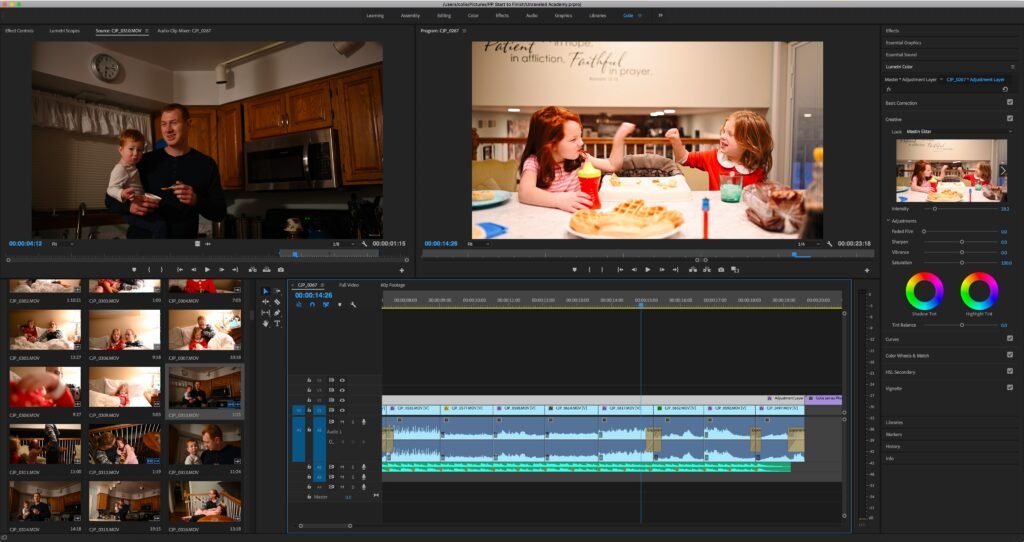
Is it worth using AI to edit my family videos
Your phone has 400 videos. Birthday parties, vacations, the kids being ridiculous — hundreds of hours of memories you’ll never watch because who has time to edit? Then someone mentions AI video editing, and you wonder: is it worth using AI to edit your family videos, or is this another tech promise that underdelivers?
Here’s my honest verdict: for family videos specifically, AI editing is genuinely worth it. Not because it makes you a filmmaker, but because it solves the exact reasons family videos never get watched: they’re too long, too boring in parts, and editing feels overwhelming.
Is It Worth Using AI to Edit Family Videos? What the Tools Do Now
Automatic Highlight Reels (The Killer Feature)
This is the one that matters most. Tools like Google Photos’ AI editing, Apple Photos’ Memories, and dedicated apps analyze your footage and auto-generate highlight reels: detecting smiles, laughter, and action; cutting the boring 20 minutes into a tight 2-minute story; syncing to music. What took a weekend in iMovie now takes one tap.
The quality genuinely surprises people. The AI is good at finding the moments — the candle being blown out, the kid’s face when they see the puppy. It’s not art, but it’s watchable, which is the entire goal for family videos.
Cleanup and Enhancement
- Stabilization: fixes shaky handheld footage dramatically. The #1 improvement for phone videos.
- Noise removal: AI separates voices from background noise — wind, crowds, air conditioners.
- Lighting correction: brightens dark indoor footage, balances harsh sunlight.
- Upscaling: old low-res videos get AI-enhanced for modern screens. Great for digitized home movies.
- Auto-captions: useful for family videos — searchable, and helpful for hearing-impaired relatives.
Text-Based Editing (The New Paradigm)
Tools like Descript let you edit video by editing a transcript: delete a sentence of text, and the corresponding video is cut. Remove the “ums,” cut the boring section, rearrange stories — by working with words instead of timelines. If you can edit a Word document, you can edit video.
The Free vs. Paid Question
- Free and surprisingly good: Google Photos auto-creations, Apple Memories, CapCut (free tier handles most family needs).
- Worth paying for if: you have a big backlog (Descript ~$12–$24/month), you want the best upscaling for old footage, or you’re making annual year-in-review videos.
- My recommendation: start free. The built-in phone tools auto-generate decent memories already. Upgrade only if you catch the bug.
What AI Can’t Do (Manage Expectations)
- It can’t fix truly bad footage. Extremely dark, blurry, or inaudible video stays bad.
- Its taste is generic. Auto-edits follow formulas. For a wedding video or milestone event, a human editor’s judgment still wins.
- It misses context. The AI might cut the “boring” 30 seconds of Grandma talking — which is the part you’ll treasure most in ten years. Always review before deleting originals.
- Privacy: cloud-based editing means uploading family footage to servers. Know where your videos go — our AI privacy guide covers the considerations.
A Practical Family Video Workflow
- Monthly (10 min): let your phone’s AI generate the month’s highlight reel. Save the good ones.
- Quarterly (30 min): review auto-creations, favorite the best, delete the duds.
- Yearly (1 afternoon): compile the year’s favorites into a year-in-review video. AI assembles; you add personal touches.
- Forever: back everything up in two places. AI editing is useless if the originals are lost to a dead phone.
Pair this with AI photo organization and your entire family archive becomes searchable and watchable instead of a digital attic.
AI Video Editing: Frequently Asked Questions
What’s the easiest AI video editor for a total beginner?
Start with what’s already on your phone: Google Photos (Android) or Apple Photos (iPhone) auto-generate highlight reels from your footage with zero effort — just open the app and look for Memories or Creations. When you want more control, CapCut’s free tier offers AI trimming, auto-captions, and templates with a gentle learning curve. Don’t download professional software first — you’ll drown in features. Master the phone tools, then graduate only if you outgrow them.
Can AI upscale my old family videos?
Yes, impressively. Tools like Topaz Video AI and various free alternatives use machine learning to enhance old low-resolution footage — sharpening details, reducing noise, and even bumping frame rates for smoother motion. Results vary: well-lit originals upscale beautifully; dark, blurry originals improve modestly. For digitized VHS home movies, upscaling plus stabilization can feel like time travel. Always keep the originals — enhancement tech keeps improving, and you’ll want to re-process in a few years.
How do I keep my family videos private when using AI tools?
Prefer on-device processing (Apple Photos does most AI work on your iPhone) over cloud upload services when privacy matters. For cloud editors, check the privacy policy: how long is footage retained, is it used for training, who can access it? Avoid uploading sensitive family moments to obscure free tools with vague terms. The FTC’s consumer privacy resources explain what protections apply to your uploaded content. Rule of thumb: the more intimate the footage, the more carefully you vet the tool.
Can AI add music to my videos without copyright issues?
Use the music libraries built into the editing apps — Google Photos, Apple Memories, CapCut, and Descript all include licensed tracks cleared for personal use. Don’t pull commercial songs from Spotify or YouTube into family videos you plan to share publicly; that’s copyright infringement even for personal projects posted online. The built-in libraries are surprisingly good now, and auto-syncing cuts to the beat is genuinely delightful.
The Bottom Line on AI Video Editing
Is it worth using AI to edit your family videos? Yes — because the alternative isn’t professional editing, it’s videos nobody ever watches. AI turns an overwhelming backlog into watchable memories with minimal effort: auto-highlight reels, stabilization, noise cleanup, and text-based editing for the ambitious. Start with the free tools on your phone, review the AI’s choices (it doesn’t know which moments matter most to you), and build the yearly compilation habit. In twenty years, you won’t care that a robot helped edit — you’ll care that the videos exist and get watched.