How Do I Turn Off Location Tracking on My Apps Without Breaking Them?
How Do I Turn Off Location Tracking on My Apps Without Breaking Them?

That weather app doesn’t need to know where you are at 3 AM. Neither does the shopping app, the flashlight app (why did you even install that), or half the games on your phone. But you’re nervous: how do I turn off location tracking on my apps without breaking them? Will maps stop working? Will delivery apps fail?
Here’s the reassuring truth: you can lock down location aggressively and break almost nothing. Modern phones give you granular control — per-app, with options like ‘only while using’ — and most apps work fine with less access than they demand. Here’s the setup.
How do I turn off location tracking on my apps without breaking them?
The Permission Levels, Explained
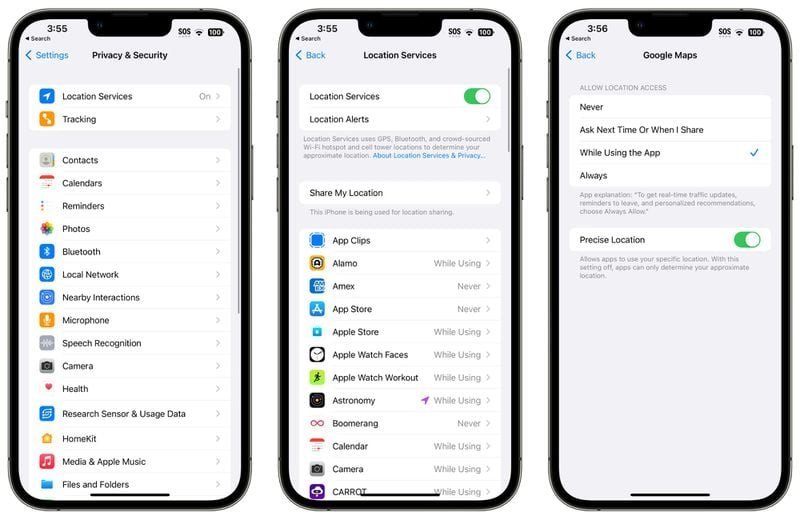
Both iPhone and Android offer three location permission levels per app: ‘Never’ (or ‘Don’t allow’), ‘While Using’ (only when the app is open on screen), and ‘Always’ (background tracking, 24/7). The vast majority of apps work perfectly on ‘While Using’ — maps navigate, ride-shares find you, delivery apps deliver. ‘Always’ is needed only by a handful of apps: family locators, run trackers recording in the background, smart home geofencing, and Find My-style device tracking.
Go through your apps (iPhone: Settings > Privacy & Security > Location Services; Android: Settings > Location > App location permissions) and demote everything from ‘Always’ to ‘While Using’ unless you can articulate why it needs background location. Be ruthless: that retail app does not need to track your movements to show you a coupon. When an app genuinely needs ‘Always,’ your phone will tell you — iOS even periodically reminds you which apps have background access and lets you revoke it from the notification.
The Sneaky Trackers Beyond the Location Toggle
Location permission is only half the story. Apps also infer location from Wi-Fi networks, Bluetooth beacons (those little trackers in stores), and your IP address. On iPhone, turn off Bluetooth access for apps that don’t need it (Settings > Privacy & Security > Bluetooth) — retail apps use Bluetooth beacons to track you inside stores. On Android, disable ‘Wi-Fi scanning’ and ‘Bluetooth scanning’ in Location settings, which let apps detect nearby networks and beacons even with Wi-Fi/Bluetooth off.
Also check ‘Precise Location’ — both platforms let you grant approximate location instead of exact GPS coordinates. A weather app works fine knowing your city, not your street address. And review ‘Significant Locations’ (iPhone) or ‘Location History’ (Google): these are system-level logs of everywhere you’ve been. You can clear the history and turn off future logging without affecting any app’s functionality.
What Breaks (and What Doesn’t)
Let’s be specific about consequences. Setting everything to ‘While Using’: maps, ride-share, delivery, and camera geotagging all keep working. What changes: run-tracking apps won’t record if you switch apps mid-run; smart home ‘arrive home’ automations may trigger late; family locator apps need ‘Always’ to do their job. Those are legitimate ‘Always’ candidates — grant it deliberately, not by default.
Setting an app to ‘Never’: the app will usually prompt you to enable location when it truly needs it (maps will ask when you hit the locate button). Nothing breaks permanently — permissions are reversible in seconds. The nuclear option of disabling Location Services entirely breaks navigation and Find My, so don’t do that; per-app control is the scalpel, the master toggle is the sledgehammer. If battery life is part of your motivation, constant GPS polling is indeed a drain — see why batteries drain overnight for the full picture.
Quick Answers
- Demote ‘Always’ to ‘While Using’ for every app except trackers, run apps, and smart home geofencing.
- Use Precise Location selectively: weather and news apps get approximate; maps get precise.
- Kill Bluetooth/Wi-Fi scanning for apps that use beacons to track you in stores.
- Clear Significant Locations / Location History and disable future logging.
- iPhone: Settings > Privacy & Security > Location Services — review per app.
- Android: Settings > Location > App location permissions — same drill.
- Nothing breaks permanently: apps prompt when they truly need access; re-grant in seconds.
The Bottom Line
You can turn off location tracking on your apps without breaking them by demoting ‘Always’ to ‘While Using’ across the board, granting precise location only where it matters, and disabling the sneaky Bluetooth/Wi-Fi scanning backdoors. Maps, delivery, and ride-shares keep working — they just stop watching you when closed.
Do the 10-minute audit today. You’ll be genuinely surprised how many apps had ‘Always’ access for no reason — and there’s something deeply satisfying about taking it back.
Frequently Asked Questions
Which apps genuinely need ‘Always’ location access?
Few: family locator apps (Life360), run/fitness trackers recording in background, smart home geofencing (arrive-home automations), Find My device networks, and some transit/parking apps. Everything else — weather, shopping, social media, games, retail — works fine on ‘While Using’ or ‘Never.’ When in doubt, demote to ‘While Using’ and see if anything breaks; you can always restore it. The list of apps that truly need 24/7 location is under five for most people.
Does turning off location save battery?
Yes, noticeably if apps were polling GPS frequently in the background. GPS is one of the hungriest phone components; an app checking location every few minutes 24/7 adds up. Most users see modest but real battery improvement after the ‘Always’ purge — it’s rarely the #1 drain, but it’s free savings. The bigger win is privacy; the battery bonus is a side effect. If overnight drain is your concern specifically, background location is one of the suspects worth checking.
Can apps still track me with location turned off?
Partially — IP addresses reveal approximate location (city-level), Wi-Fi network names can too, and Bluetooth beacons in stores track physical presence independently of GPS permission. Disabling location permission stops the precise GPS tracking; the Bluetooth and Wi-Fi scanning toggles (covered in the article) close the other doors. True anonymity requires more extreme measures, but for stopping commercial tracking, these settings are highly effective. Apple’s location services documentation details exactly what each permission level allows.
What is ‘Precise Location’ and should I turn it off?
Precise Location gives apps your exact GPS coordinates (within feet); turning it off provides approximate location (within miles). Weather, news, and retail apps work fine on approximate — they need your city, not your doorstep. Keep precise on for maps, ride-share, delivery, and emergency apps. It’s per-app, so be generous where accuracy matters and stingy everywhere else. Most apps requesting precise location don’t need it; they just ask because they can.
Do privacy-focused phones handle location better?
Phones like those running GrapheneOS give granular sensor controls, but for most people the iPhone/Android settings in this article achieve 90% of the benefit with zero hassle. The bigger privacy wins are behavioral: fewer apps, less oversharing, and caution on untrusted networks — see our public Wi-Fi safety guide for the network side of the equation. Exotic hardware is the last 10%; settings and habits are the first 90%.