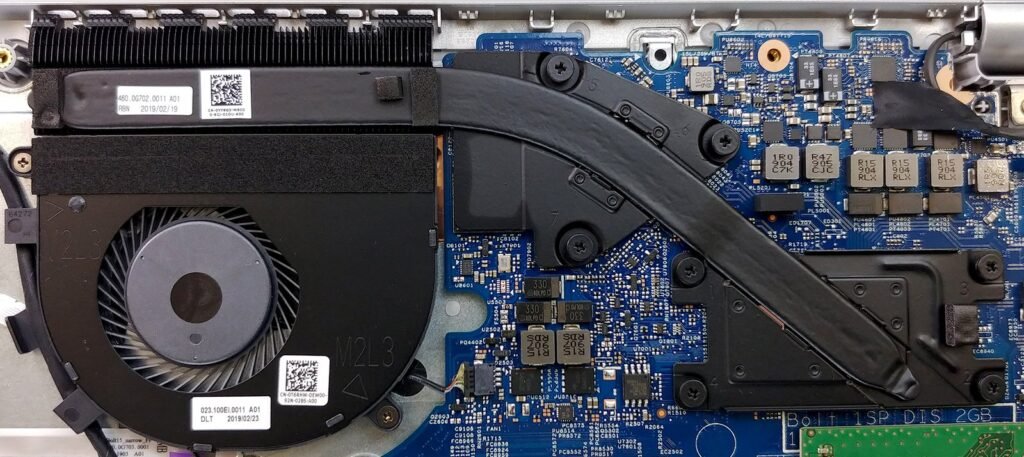
Why Does My Laptop Fan Run So Loud When I Open a Browser?
Why Does My Laptop Fan Run So Loud When I Open a Browser?

You open Chrome to check email, and your laptop sounds like it’s preparing for takeoff. Close the browser, and silence. Why does my laptop fan run so loud when I open a browser? It’s just a web page — it shouldn’t need a wind tunnel.
This is one of the most common laptop complaints, and it’s almost never a broken fan. It’s your browser asking your laptop to do far more work than ‘just showing a web page’ should require. Here’s what’s happening and how to quiet it down.
Why does my laptop fan run so loud when I open a browser?
Why Browsers Are Secretly Resource Hogs
Modern browsers are essentially operating systems. Each tab runs as a separate process, and today’s websites run massive JavaScript applications — a single news site can execute more code than an entire 1990s computer. Add 15 open tabs, a few with auto-playing video, animated ads, and background trackers, and your CPU is genuinely working hard. The fan is doing its job: keeping the processor cool under a real workload.
Extensions make it worse. Ad blockers (ironically) plus coupon extensions, password managers, grammar checkers, and shopping assistants all inject code into every page. Hardware acceleration — meant to help — can cause the fan to spin up on laptops with weak integrated graphics or buggy drivers. And if your laptop is a few years old with dust-clogged vents, the cooling system has no headroom left, so even moderate browser load triggers full fan speed.
7 Fixes to Quiet the Fan
Start with the biggest win: tab hygiene. Each tab costs CPU and RAM — bookmark tab groups instead of keeping 30 tabs ‘for later,’ and use extensions like OneTab to park them. Enable your browser’s memory saver / tab sleep feature (Chrome: Settings > Performance > Memory Saver; Edge has efficiency mode; Firefox unloads background tabs automatically). This alone often cuts fan noise in half.
Next: audit extensions. Disable everything non-essential and test — you’d be surprised how often one badly-coded extension is the culprit. Update your browser and graphics drivers (buggy drivers cause exactly this symptom). Check Task Manager’s Processes tab sorted by CPU while the browser is open — if a single tab or extension process is eating 50%+ CPU, that’s your villain; kill it. Physically, blow dust from the vents with compressed air (laptop off, short bursts) — dust is the silent fan-noise multiplier. And elevate the laptop slightly for airflow; flat on a bed or couch pillow chokes the intake vents.
When Loud Fan Means Something’s Wrong
A fan that’s loud only with the browser open is normal-ish and fixable. A fan that’s loud constantly, even idle, suggests dust buildup, dried thermal paste (common after 3–4 years), or a background process like a stuck Windows update — see why updates slow laptops down for that one. Grinding or clicking sounds (not just whooshing) mean a failing fan bearing — that’s a $30–$60 repair before it dies completely and the laptop starts overheating.
If the laptop is also slow, the fan and the slowness usually share a cause — thermal throttling, where the CPU slows itself to avoid overheating. Fixing the cooling (dust, ventilation, thermal paste) fixes both. And if the machine is getting old overall, weigh whether repair or replacement makes sense before sinking money into it.
Quick Answers
- Tab hygiene: close or park tabs; enable Memory Saver / tab sleep features.
- Audit extensions: disable non-essentials; one bad extension can max a CPU core.
- Find the hog: Task Manager > Processes sorted by CPU while browser is open.
- Update browser + graphics drivers — buggy drivers cause exactly this.
- Clean the vents with compressed air (laptop off, short bursts).
- Elevate the laptop — never block intake vents with beds or couch cushions.
- Grinding/clicking? Failing fan bearing — $30–$60 repair before it dies.
The Bottom Line
Your laptop fan runs loud when you open a browser because modern browsers are heavy applications, multiplied by too many tabs, extensions, and dust-choked vents. The fixes — tab discipline, extension audit, memory saver, vent cleaning — are free and usually cut the noise dramatically.
A whooshing fan is your laptop working as designed; a grinding fan is a repair waiting to happen. Clean the vents, tame the tabs, and enjoy the silence — or at least, a much quieter hum.
Frequently Asked Questions
Is it bad for my laptop that the fan runs loud?
The fan running loud is the cooling system working correctly — it’s preventing damage, not causing it. What’s bad is sustained overheating (which loud fans prevent) or a fan that can’t keep up due to dust or failure. Think of it like sweating: the noise is the solution, not the problem. Worry when the fan is silent during heavy load (not cooling) or making grinding noises (dying bearing), not when it’s whooshing during a video call.
Should I use a laptop cooling pad?
They help modestly — mostly by elevating the laptop for airflow, which you can do free with a book. Active cooling pads (with fans) drop temperatures a few degrees; passive stands do nearly as well for less money and no noise. The real wins are dust cleaning and not blocking vents. Buy a $15 stand for ergonomics and airflow; skip the $50 RGB cooling pad unless your laptop genuinely thermal-throttles during gaming.
Why is my laptop hot even when I’m not doing anything?
Something is running — check Task Manager (Windows) or Activity Monitor (Mac) sorted by CPU. Common culprits: stuck Windows updates, antivirus scans, cloud backup/sync going wild, a runaway browser tab, or malware (cryptominers love idle laptops). If CPU is near zero but it’s still hot, check the vents for dust blockage or a failed fan. An idle laptop should be cool and quiet; heat at idle always has a findable cause.
Can I control the fan speed manually?
Some gaming laptops include fan control software; most consumer laptops don’t expose it (manufacturers tune curves conservatively). Third-party tools exist but can void warranties and risk overheating if misconfigured — the built-in curve is smarter than you think. Better approach: reduce the heat load (fewer tabs, clean vents, updated drivers) rather than fighting the fan. If the fan curve seems wrong (silent during heavy load), that’s a driver or BIOS issue worth fixing. Google’s Chrome performance guidance covers the browser-side optimizations that reduce the load causing the noise in the first place.